


















Clean up
Remove copies that are no longer needed. Your original images are never deleted here, and the copies PrestaShop made itself are left to PrestaShop. Copies are shared by all shops.
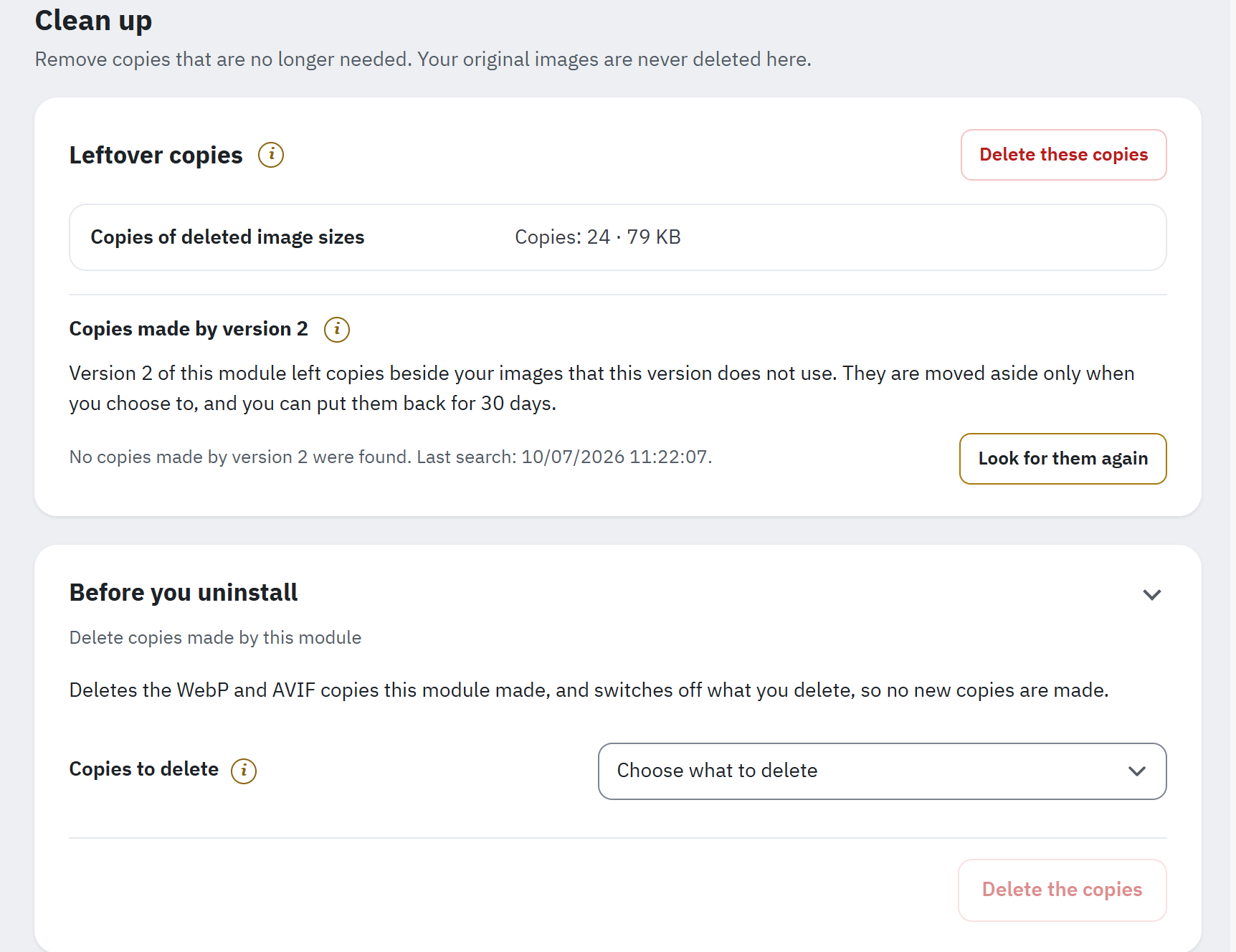
- A row per kind of leftover copies, with their number and size.
- Delete these copies deletes the leftover copies of every row.
- Copies made by version 2 (only on a shop that ran version 2), with the last search.
- Before you uninstall: delete the copies made by this module, by format or kind of images.
Deleting and moving copies needs the delete permission of this page (Permissions of employees); without it the page says Deleting and moving copies needs the delete permission of this page. Every step runs a few seconds at a time; keep the page open until it ends.
Leftover copies
The card Leftover copies has a row for each kind that has copies, with their number and size:
- Copies of deleted images: WebP and AVIF copies of images that were deleted from your shop. When an image is deleted outside the module’s view (by FTP, by another module), its copies stay until you delete them here.
- Copies of deleted image sizes: WebP and AVIF copies of the image sizes that were deleted in Design › Image Settings.
Click Delete these copies, in the card’s head: it deletes the copies of both rows. The Overview reminds you of them with the check Leftover copies, as information while they are small (under 50 MB and at most 1 % of the copies).
When there is nothing to clean, the card holds one line with a tick: Nothing to clean up: every copy belongs to an image of your shop.
Copies made by version 2
Version 2 of this module left copies beside your images that this version does not use: copies in img/cms, copies of the uploaded catalogue originals, and copies in the theme and module folders. The module no longer sends them in place of your images; only pages that link such a copy directly still show it. They are moved aside only when you choose to, and you can put them back for 30 days. This part of the Leftover copies card appears only on a shop that ran version 2.
- Click Look for them. The search reads the texts of your pages first (CMS pages, product, category, brand and supplier descriptions), so the copies your pages show are never ticked for you. The date of the last search stands beside the button, for example No copies made by version 2 were found. Last search: 10/07/2026 11:22:07.
- The groups found are listed under Copies found, each with its number of copies:
- ticked: img/cms (made by version 2), the copies in
img/cmsthat no page shows, and Copies of catalogue originals (made by version 2); - not ticked: img/cms, used in your pages (check before moving), and the copies inside a theme or a module folder (“may be shipped by the theme, check before moving”), which may be part of that theme or module.
- ticked: img/cms (made by version 2), the copies in
- Check the groups, then click Move the ticked copies aside and confirm with Move them aside. The ticked copies go to the module’s data folder.
The moved copies are listed under Copies moved aside, with the date. Restore puts them back while their name is free; after their last day, 30 days after the move, they are deleted for good. Pages that showed one of these images lose it until you put it back with Restore.
A list of copies found more than a day ago must be searched again before moving (Look for them again).
Before you uninstall: delete copies made by this module
The card Before you uninstall, closed at the end of the page, deletes the WebP and AVIF copies this module made, and switches off what you delete, so no new copies are made. Choose all copies before you uninstall the module, or one format or kind of images to stop making copies of it.
- Click Before you uninstall to open the card.
- Under Copies to delete, the choice starts on Choose what to delete, and nothing can be deleted until you choose. Choose All copies, WebP copies, AVIF copies, Copies of catalogue images, Copies of CMS images, Copies of theme images, Copies of module images or Copies of the shop logo. Each choice shows its number of copies and their size.
- Click Delete the copies and confirm.
- The result says how many copies were deleted, how much space was freed and what was switched off, for example AVIF is switched off in Formats and quality, so no new AVIF copies are made.
Copies that are now files of your shop or of PrestaShop (made by PrestaShop itself, or by another program at the same name) are kept.
Originals
Optional: make the original JPG and PNG files smaller too, with a backup you can restore. Large uploaded photos are scaled down, camera details are removed, and a file is changed only when it gets at least 10 % smaller. This is off until you turn it on. Originals are shared by all shops.
Smaller originals help where the copies cannot: product feeds (the Google and Facebook modules send the original image) and the disk space of your hosting.
Optimise originals
The section shows only what applies. While the feature is off and has never run, it holds just the card Optimise originals, with the line Turn on “Optimise originals” and save to start. The card Progress appears once the feature is on (and stays once originals were listed), the card Backups once a backup exists.
| Setting | What it does | Default |
|---|---|---|
| Optimise originals | Rewrites the original JPG and PNG files of the images chosen below as smaller files, after a backup of each in the module’s data folder; a file that does not get at least 10 % smaller stays as it was, and Restore puts the originals back. | Off |
| Catalogue originals | The product, category, brand, supplier and store photos you uploaded, from which PrestaShop makes every image size. | On |
| CMS images | Images of CMS pages and other texts in the img/cms folder; their WebP and AVIF copies are made again once after they are optimised. | Off |
| Longest side | Larger photos are scaled down so that their longest side has this many pixels; 0 keeps the original dimensions. Camera details are removed from the optimised files. | 2560 pixels |
| JPEG quality | The JPEG quality of the rewritten photos, from 60 to 95. PNG files stay PNG, with their transparency, and are compressed without loss. | 85 |
Turn on Optimise originals and click Save. The originals are then optimised by the next automatic runs, after the copies, or now with Optimise now.
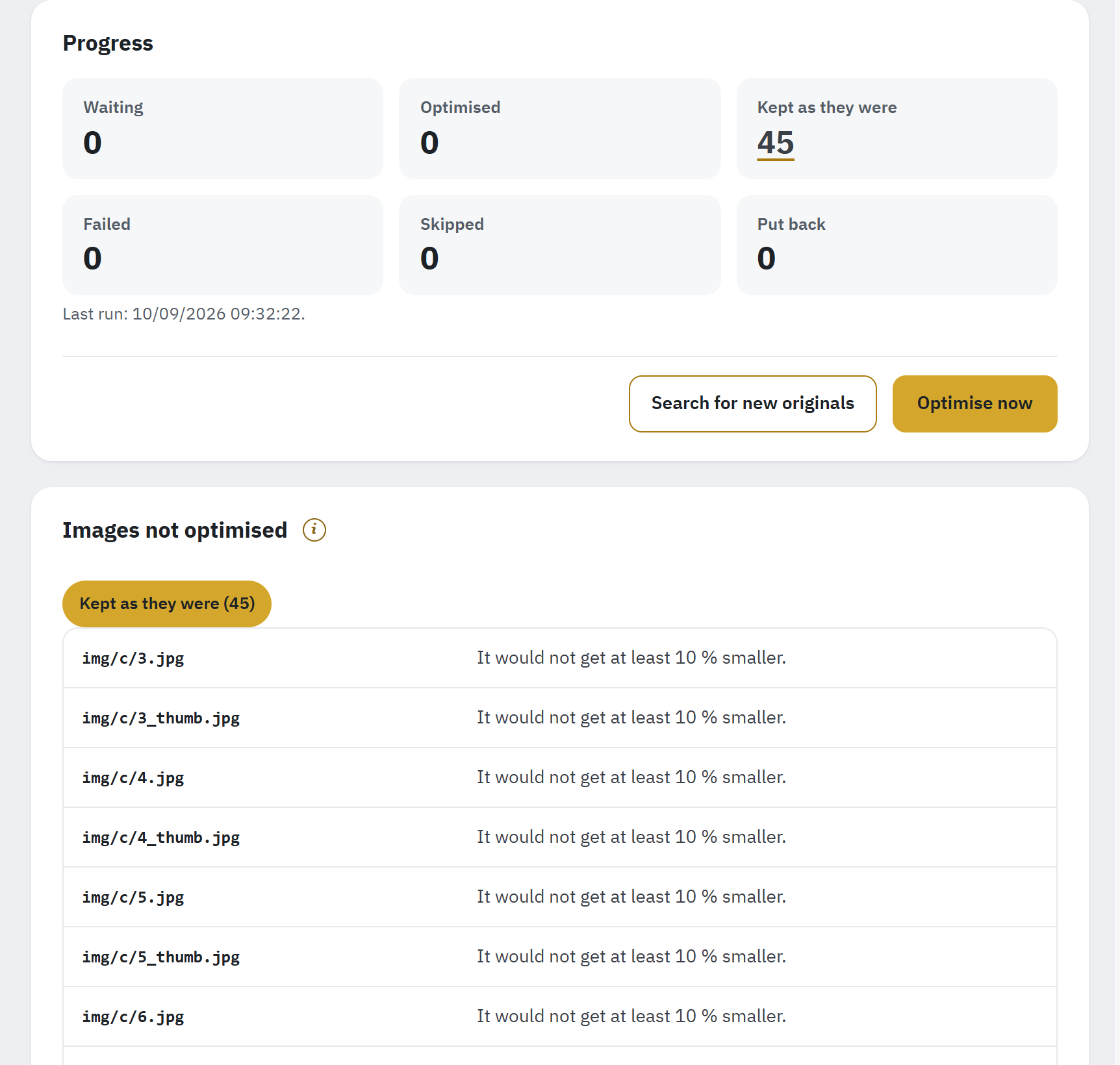
- The originals per state; the number of the kept, failed or skipped ones opens their list.
- Search for new originals and Optimise now.
- The state whose images are listed, with their number.
- Each image with the reason it was not optimised.
Progress
The Progress card counts the originals per state: Waiting, Optimised, Kept as they were, Failed, Skipped and Put back; the numbers of the kept, failed and skipped ones open their list. Under them it sums up the saving, for example The optimised originals went from 412 MB to 168 MB (−59 %)., and the date of the last run.
- Optimise now optimises the waiting originals while the page stays open. Leaving the page stops it; the images optimised so far stay optimised.
- Search for new originals looks through the image folders for originals the module has not listed yet, for example after an import. It counts as it goes (Originals found so far: 120.) and ends with Search finished, new originals found: 12. or Search finished: no new original found.
- When the disk is nearly full, the originals wait; with less than 64 MB free the job stops and says so (Stopped: less than 64.0 MB free on the disk.).
Images not optimised
The card Images not optimised appears when there are some. It lists the images the module kept as they were, could not optimise or skipped, one state at a time, each with the reason. Most are normal: It would not get at least 10 % smaller., an animated PNG, a colour profile GD cannot keep, a camera orientation that is not certain. An image kept or failed is tried again only when it changes.
Backups
Each optimised original keeps a backup in the module’s data folder until you restore it or delete the backups; uninstalling the module keeps them too. The card Backups shows their number and size in its head.
- Restore all puts back the originals of every image with a backup, byte for byte, and then deletes those backups. The images deleted from your shop since cannot be put back.
- Images with a backup lists them one page at a time, each with Restore, or with Delete this backup when the image is no longer in your shop.
- Delete backups deletes every backup (the button shows their number and size). The optimised images stay, and their originals can no longer be put back.
- Backups of images deleted from your shop since they were optimised: Delete these backups removes them. A backup whose image is back in your shop is kept.
An image that was changed after it was optimised (by a new upload, by another tool) is never overwritten by Restore.
Backups of replaced images, earlier backups, backups without a record
- Backups of replaced images: when an optimised image is replaced, for example by a new upload with the same name, its old backup is set aside here instead of being deleted. The new image is optimised with a backup of its own.
- Earlier backups found in the backup folder: a file with the name of an image’s backup was found without a record of it, most likely the original from an earlier optimisation. The module leaves the image alone rather than overwrite that file: Put it back (the image in place is set aside first) or Delete this backup.
- Backups without a record, shown while the feature is or was used: Look for them lists the files in the backup folder that no image of the list accounts for, for example after the module’s list of originals was reset; Delete them removes them.
The first two cards appear only when they hold backups. Deleting backups needs the delete permission of this page. Use Restore all before uninstalling if you want the originals back now (Disable, reset and uninstall).