


















Statistics
What the copies save, how fast your pages are, and the space the copies take. Use it to show the effect of the module: the download size saved per kind of image, and your PageSpeed scores before and after.
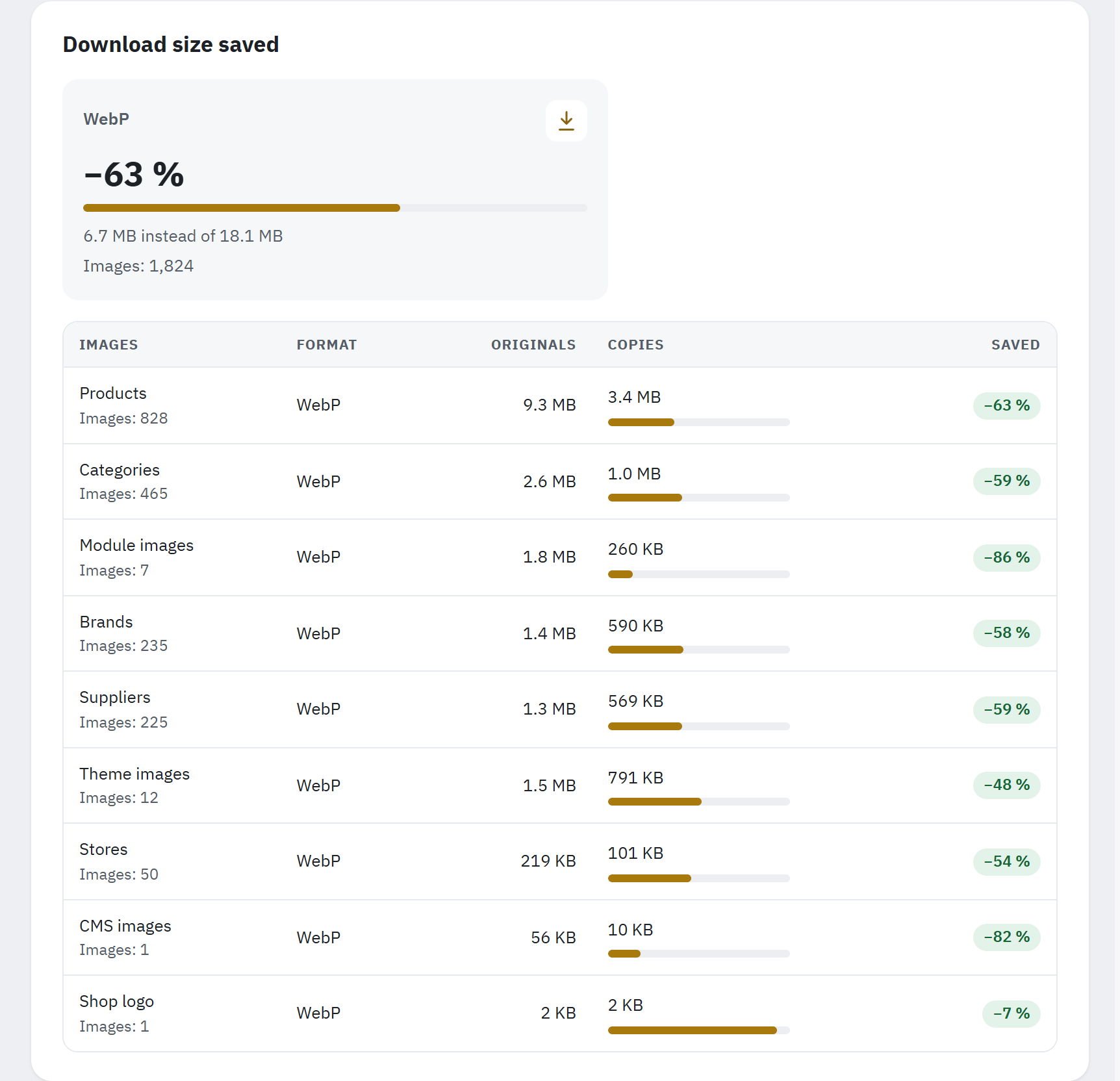
- A tile per format: the share saved, the size of the copies instead of the originals’, and the number of images.
- The table per kind of image and format, starting with the kind that saves the most.
Download size saved
A tile per format shows the share saved with a bar, the size of the copies against that of their originals, for example 5.4 MB instead of 17.8 MB, and the number of images. The table below shows, per kind of image (Images, with their number) and Format, the size of the Originals that have a copy, the size of their Copies, and how much is Saved. It starts with the kind of image that saves the most bytes, usually the products. This is what a visitor whose browser takes that format no longer downloads. The download size saved and the disk space are for all shops.
PageSpeed
Google PageSpeed Insights measures your home, category and product pages on mobile and on desktop, from the internet. Your shop must therefore be reachable from the internet: a shop in maintenance mode, on a local computer or behind a password cannot be measured, and the card then stays empty with Your pages have not been measured yet. When the address of the shop is one of your own network (such as localhost or a private IP address), the card says so before you run anything: Google measures only a shop it can open from the internet, and localhost:8099 is an address of your own network.
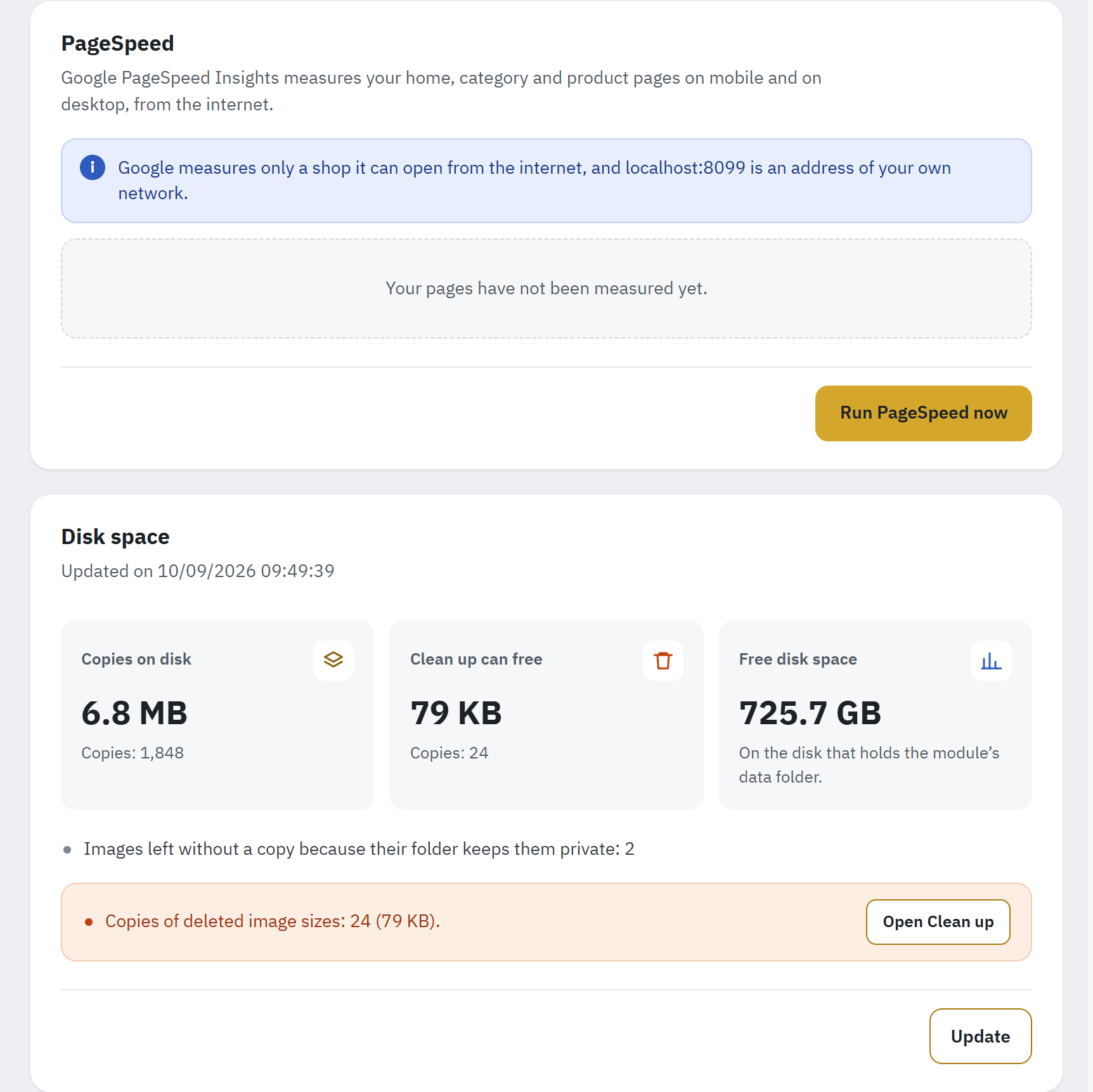
- Why this shop cannot be measured: its address is one of its own network.
- Where the first and the latest measurement appear; here Your pages have not been measured yet.
- Run PageSpeed now.
- The tiles of Disk space: the copies on disk, what Clean up can free, the free disk space.
- The copies Clean up can delete, with Open Clean up.
- Update counts the disk space again.
- In a multistore, choose the shop next to Shop measured:.
- Click Run PageSpeed now. Each page takes up to a minute. Leaving the page pauses the measurement; it goes on when you come back.
- The table shows, per Page and Device (Mobile, Desktop), the First measurement and the Latest: the score and the Largest Contentful Paint, for example Score 74, LCP 2.8 s. A dot gives the score’s band as PageSpeed colours it: green from 90, orange from 50, red below. The latest score shows its change in points, for example +13.
The first measurement of a shop with at least four scores is kept as its reference. Its name tells you what it compares with:
- Before the conversion: measured on a fresh installation while fewer than 5 % of the images had copies.
- Baseline (WebP delivery already active): measured after an upgrade from version 2, which already delivered WebP.
- First measurement: any other case.
Scores are compared only for the same page: when the first product or category of your shop changed since, the line says Another page than the first measurement, so the scores do not compare. PageSpeed scores also vary from one run to the next by a few points; measure a few times before you draw a conclusion.
Disk space
Click Update to count the disk space. The card then shows the date of the count and its tiles:
- Copies on disk: the size of the copies the module made or took over, and their number;
- Clean up can free: copies without an original, copies of deleted image sizes and, after an upgrade from version 2, the copies of version 2 that Clean up found (only when there are some). The tile follows the rule of the Overview (The checks): blue while the leftovers are under 50 MB and at most 1 % of the copies, orange above;
- Free disk space: On the disk that holds the module’s data folder.
Under the tiles, the lines say which copies Clean up can delete (Open Clean up), the copies of version 2 moved aside and kept for a while, and the images left without a copy because their folder keeps them private, or because PHP cannot read their file name on this server (Images whose file name starts with an accented letter get no copy).
Advanced
Click Advanced to open it. Google API key for PageSpeed: your own Google API key for PageSpeed, a free key of the PageSpeed Insights API from Google Cloud, needed only when Google’s free quota is used up. It is sent to Google only. Remove the key deletes it; PageSpeed then uses Google’s free quota.
Compare
Original, WebP and AVIF side by side, with their file sizes. Use it to judge the quality you chose on your own images, or to see why an image has no copy.
Compare opens on a real photo: the cover image of your newest product that has a copy, in the size large_default (or a product size close to it). The form above it shows that product and size.
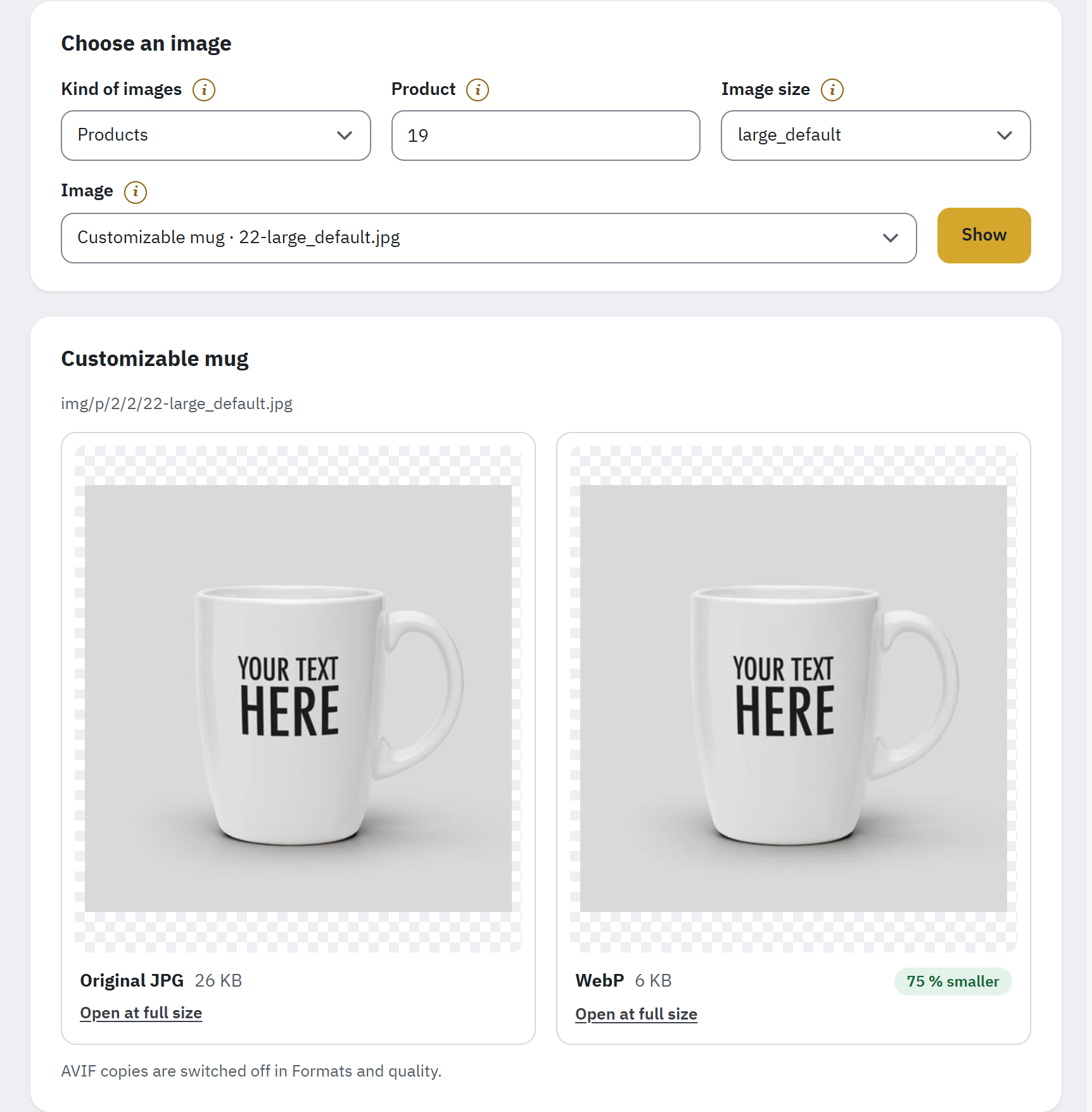
- The choice of the image: kind, product, size and the image itself, then Show.
- The product’s name, with the path of the image file under it.
- The original with its file size.
- The WebP copy with its size and how much smaller it is.
- Open at full size shows the image in its own tab.
- A format that is switched off, or that this server cannot create, has no frame: one line under the images says so.
Choose an image
Fill in the fields of Choose an image from left to right:
- Choose the Kind of images. Only the kinds of images that have a copy are listed.
- For products, type in Product a product name, or part of it, or its ID. Leave it empty to see the images of every product. For the other catalogue kinds, enter the Category ID, Brand ID, Supplier ID or Store ID: its ID is in the first column of its list in the back office.
- Optional: choose an Image size, named as in Design › Image Settings, or keep All sizes.
- Choose the Image. The newest images come first, a product image named by its product and file; Older images looks further back and Newest images comes back.
- Click Show.
A name finds the products whose name contains it and that have a copy, the newest first. The first one is shown; the others are offered as links under Other products found:. When none matches, the card says so, for example No product with a copy matches “mug”.
When you change the kind of images, the product or the size, Show opens the first image of the new choice; for a product, its cover image. PrestaShop’s “no picture” placeholder images are never listed.
What you see
The card’s title is the product’s name, with the path of the file under it (for the other kinds of images, the path alone). Each frame shows one format with its file size and how it compares with the original: for example 38 % smaller, The same size as the original or 12 % larger. Look at fine detail at full size: the right quality is the lowest one where you see no difference.
A format switched off in Formats and quality, or that this server cannot create, gets no frame: one line under the images says AVIF copies are switched off in Formats and quality. or This server cannot create AVIF copies. A copy that PrestaShop made itself is still shown, with Made by PrestaShop. under it.
When a format that is on has no copy of this image, its frame says why, for example:
- The original is kept: this copy was not smaller.
- This copy is waiting: Convert now or the automatic conversion creates it.
- PrestaShop makes this copy itself.
- Images of this kind are switched off in Images to convert.
- The .htaccess file of this image’s folder keeps this copy from being made.
As long as no image has a copy, the section says No image has a copy yet: Convert images creates them. and Open Convert images.