


















Formats and quality
Formats and quality decides which copies the module creates and how small they are. A preview shows the result on one of your own images before you save. These settings apply to all shops.
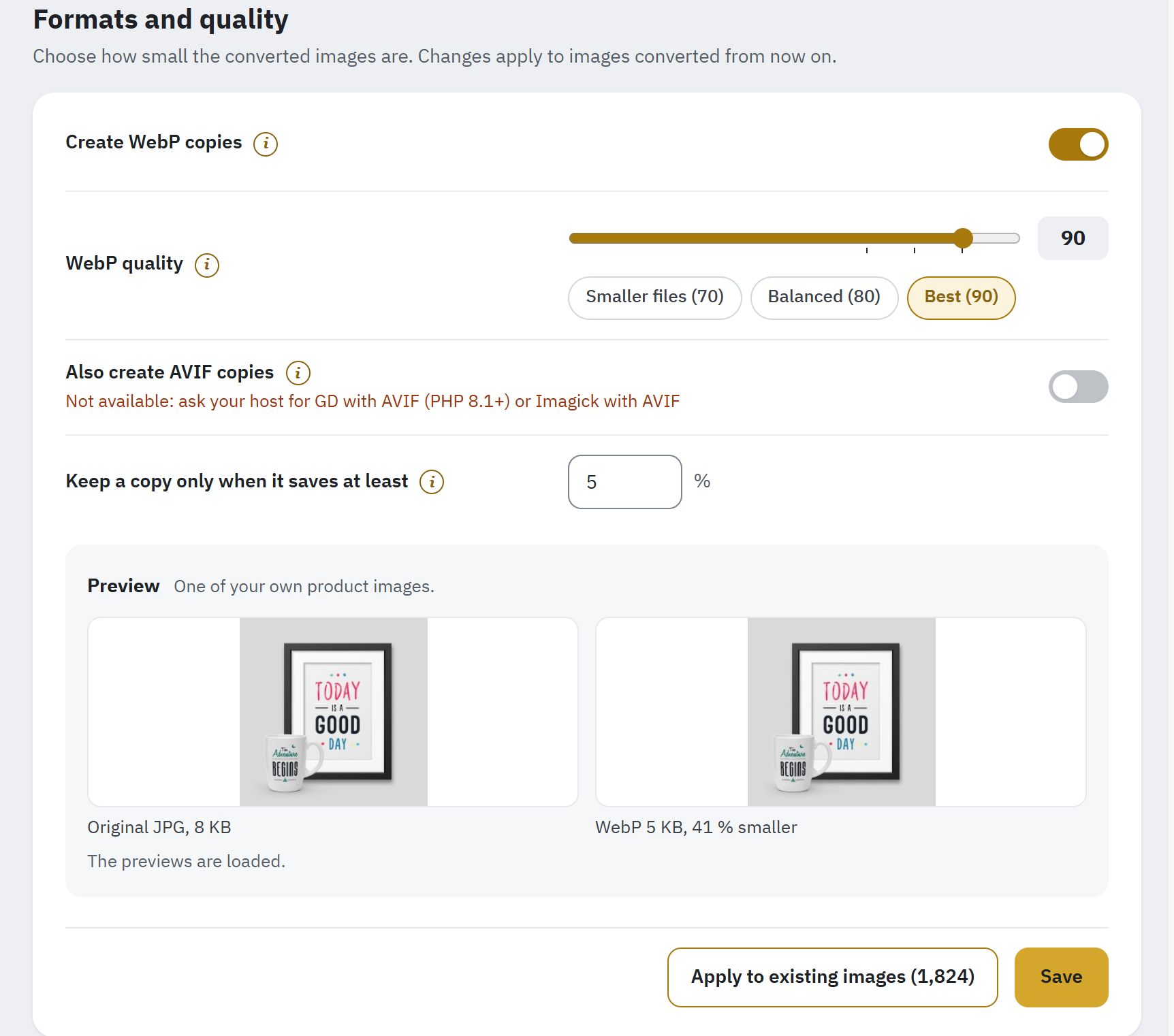
- Create WebP copies.
- WebP quality: a slider, with the presets Smaller files (70), Balanced (80) and Best (90) under it.
- Also create AVIF copies: no engine of this server creates AVIF, so the switch is greyed out and its line says what to ask your host.
- Keep a copy only when it saves at least: the smallest saving worth a copy.
- The preview: the original and its WebP copy side by side, with their sizes.
- Apply to existing images: shown while some copies were made with other settings; the number is their count.
The settings
| Setting | What it does | Default |
|---|---|---|
| Create WebP copies | WebP images are 25–35 % smaller than JPG at the same visual quality and work in almost every browser in use today; the others get the original. If your server cannot create them, the line under the switch says what to ask your host. | On |
| WebP quality | 80 looks the same as the original for most product photos. Drag the slider (10 to 100; the number beside it is the quality) or click a preset: Smaller files (70), Balanced (80), Best (90). A value set earlier stays as it is until you change it. | Balanced (80) |
| Also create AVIF copies | AVIF is often 20 % smaller than WebP and works in most browsers in use today; the others get WebP or the original. Creating it takes longer. The line under the switch names the engine that creates it, for example Available on this server (Imagick). | On when the server supports it |
| AVIF quality | Shown only when your server can create AVIF. AVIF looks as good as WebP at lower numbers: 50 matches WebP at 80. The same slider, with the presets Smaller files (40), Balanced (50), Best (60). | Balanced (50) |
| Keep a copy only when it saves at least | A copy is kept only when it is at least this much smaller than the original; otherwise the shop keeps serving the original. Small logos and well-compressed photos often do not get smaller. | 5 % |
Click Save. Changes apply to images converted from now on.
When no engine of your server creates AVIF, Also create AVIF copies stays as one greyed-out line that says Not available: ask your host for GD with AVIF (PHP 8.1+) or Imagick with AVIF. AVIF quality and the AVIF preview are then left out; the AVIF settings saved earlier are kept for the day your host adds AVIF. Engine shows which engines your server has (Engines of this server).
The preview
The Preview shows one of your own product images (or a category image, or a sample image when your shop has none yet) as the Original and as each copy your server can create, side by side: two pictures when it creates WebP only, three with AVIF. Under each one is its file size, and under each copy how much smaller it is, at the quality on the slider, before you save. To look at an image at full size in each format, use Compare (Compare).
Apply to existing images
After you change a quality, the copies made before keep their old quality. The button Apply to existing images then appears at the bottom of the card, with the number of copies made with other settings; it is not there while every copy uses the saved settings. To make them again:
- Save your changes first: Apply to existing images uses the saved settings, and it is greyed out while the form has unsaved changes.
- Click Apply to existing images.
- Confirm with Make them again. The originals stay as they are.
- Keep the page open while the bar fills: the images are queued again in steps. The copies themselves are made by Convert images and by the automatic conversion.
Switching a format off
When you switch WebP or AVIF off, the module stops creating that format, and its waiting images no longer wait for it; a bar in the card shows this update. The copies already made stay on the disk until you delete them. To stop a format completely, use the card Before you uninstall at the end of Clean up: it deletes that format’s copies and switches the format off in one go (Before you uninstall: delete copies made by this module). Switching the format on again queues its images again.
What PrestaShop creates itself
PrestaShop 8.1 and later can create WebP and AVIF copies of catalogue images itself, in Design › Image Settings (on PrestaShop 8.1 and 8.2 when the experimental feature Multiple image formats is on). The card What PrestaShop creates itself, under the settings, says whether that option is on in your shop and shows, for each kind of catalogue image and each format, who makes the copies:
| Shown | Meaning |
|---|---|
| PrestaShop | PrestaShop creates these copies. This module never replaces them: it only adds the ones PrestaShop misses, such as the images of a CSV import or the webservice and the no-picture images. |
| This module | PrestaShop does not create this format, so this module does. |
| This module (PrestaShop forgets them) | Supplier images: PrestaShop forgets their copies, so this module creates them. |
| Not made, Not made (PrestaShop forgets them) | Neither creates them, for example because the format is off or your server cannot create it. |
The card also counts the copies PrestaShop was missing that the module made, and those still waiting. Its link opens Design › Image Settings or, on PrestaShop 8.1 and 8.2 while the experimental feature is off, Advanced Parameters › New & Experimental Features.
Either way, the delivery of the module serves PrestaShop’s files too: where your theme shows only the .jpg address of an image, the visitor gets PrestaShop’s WebP or AVIF file at that address. CMS, theme and module images and the logo are always converted by this module.
Images to convert
Choose which images get WebP and AVIF copies. By default every kind of image your visitors see is converted: the catalogue, CMS pages, your theme, the slider and banner modules and the shop logo. These settings apply to all shops.
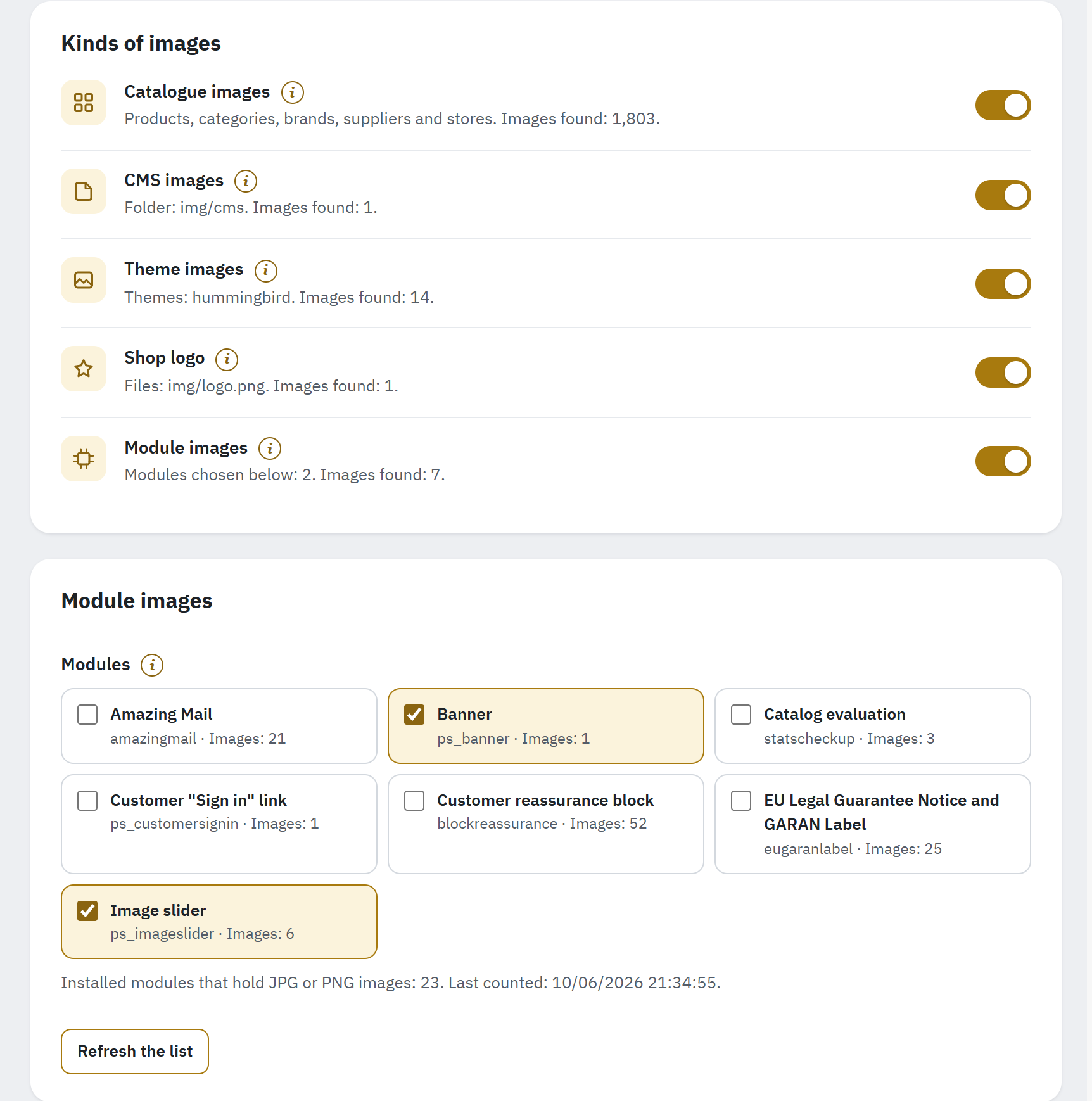
- Kinds of images: one switch per kind, with its icon, what it covers and the images found.
- The modules that hold JPG or PNG images; the ticked ones are converted.
- Refresh the list counts the images of the modules again.
Kinds of images
The card Kinds of images has a switch for each kind. Its icon turns grey when the switch is off.
| Switch | What it covers |
|---|---|
| Catalogue images | Product, category, brand, supplier and store images, in every size PrestaShop makes of them (the image sizes of Design › Image Settings). |
| CMS images | Images added to CMS pages and other texts with the editor, which PrestaShop keeps in the img/cms folder. |
| Theme images | Images of the theme each shop uses, and of its parent theme if it has one. The line names the themes. |
| Shop logo | The logo of each shop; the line names its file. The logos of emails and invoices stay as they are, as many email programs cannot show WebP. |
| Module images | Images that the modules chosen below show in your shop, such as slider and banner pictures. The line says how many modules are chosen. |
Each line ends with how many images were found, for example Themes: hummingbird. Images found: 14. Click Save after a change:
- The images you switched on are found and converted by the next conversion runs.
- The images you switched off are no longer converted; their copies stay until you delete them in Clean up (Before you uninstall: delete copies made by this module).
Module images
The card Module images lists, under Modules, the installed modules that hold JPG or PNG images and the modules you chose: each tile gives the module’s name, its technical name and its number of images, for example ps_imageslider · Images: 6. Banner and Image slider are chosen by default. Tick the modules whose images your visitors see, such as a slider, a banner or a block of brand logos, and click Save.
- The line under the tiles says how many installed modules hold images and when they were last counted. The icon each module shows in the Module Manager is not counted.
- The images are counted a few modules at a time. When a tile says not counted yet, save your changes first, then click Refresh the list: it loads the page again, so it is greyed out while the form has unsaved changes.
- While Module images is switched off above, the card says so and the images of the ticked modules are not converted.
Engine
The engine is the program on your server that creates the copies. The module finds the engines of your server by itself and uses the best one; this section shows them, tests them and holds the advanced settings. These settings apply to all shops.
Engines of this server
The card Engines of this server has a line for each of the three engines the module can use: what it can create on your server and its place in the order the engines are used. The three engines:
| Engine | What it is |
|---|---|
| Imagick | PHP’s ImageMagick extension, on some hosts. Creates WebP and AVIF when ImageMagick supports them. |
| GD | PHP’s image extension, on almost every host. Creates WebP, and AVIF on PHP 8.1 or later when it was built with AVIF. |
| EWWW cloud service | The paid cloud service of EWWW Image Optimizer. Creates WebP copies only, from your images sent to EWWW’s servers. Needs an EWWW API key. |
After a coloured dot, each line says what the engine creates here:
- WebP and AVIF; Creates WebP, not AVIF or Creates AVIF, not WebP for an engine that makes one format; WebP, through EWWW’s paid cloud service.
- Not installed on this server, Installed, but it cannot create WebP or AVIF here, or Not set up: it needs an EWWW API key.
- In orange, when EWWW refused the key: EWWW refused the key: it is not valid or EWWW refused the key: it has no image credits left.
A badge gives the place of each engine in use: Used first, or Used if GD fails (with the engine before it). With the preferred engine on Automatic, Imagick is used first, then GD, then EWWW. When an engine fails on an image, the next one tries. The last line, Last test conversion, gives the result of the last test with its date and time.
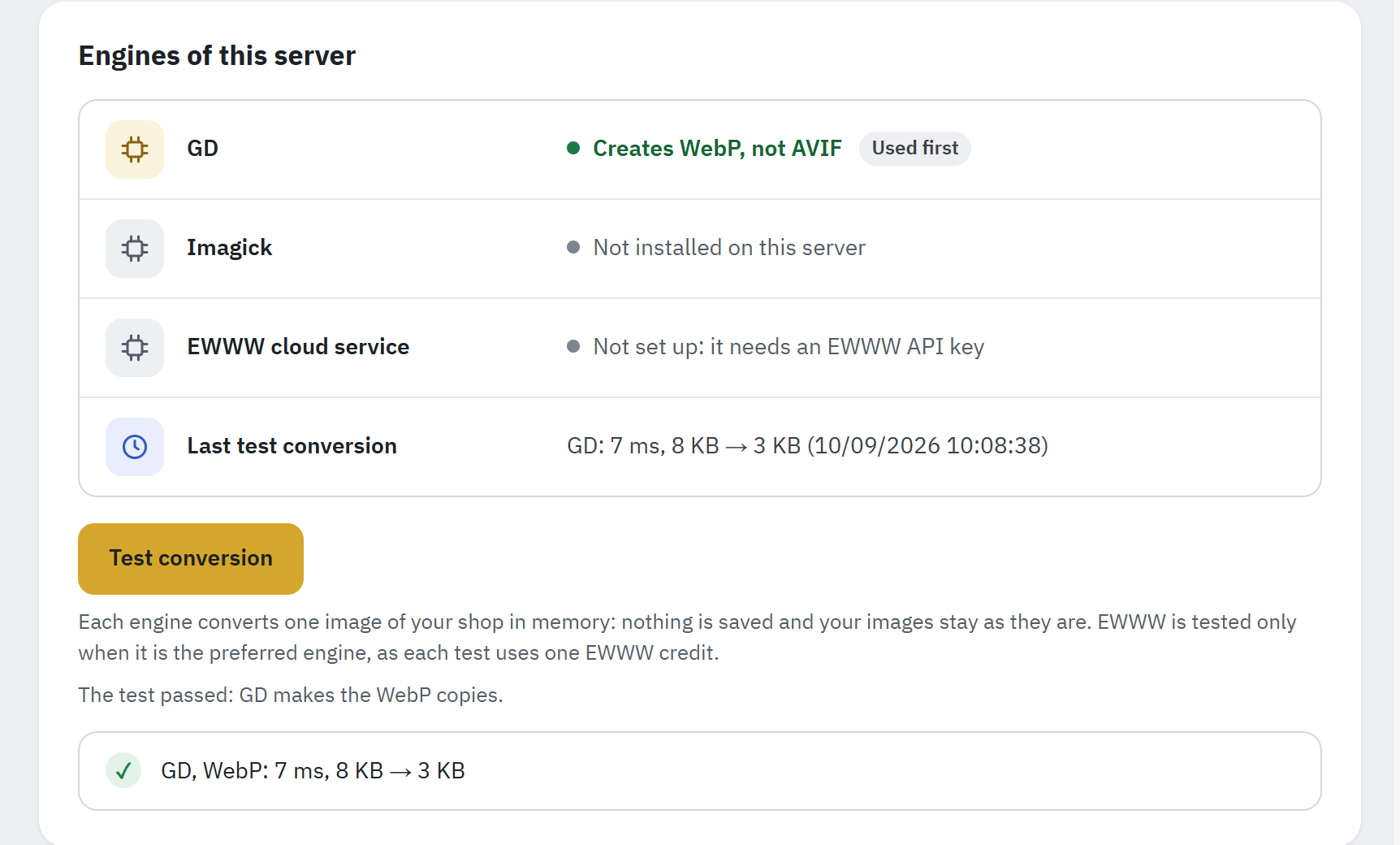
- Each engine with what it can create on this server.
- Its place in the order: Used first.
- Last test conversion: engine, time, sizes, date.
- Test conversion tests every engine on one of your images.
- The results of the test, per engine and format.
Test conversion
Click Test conversion. Each engine converts one image of your shop in memory: nothing is saved and your images stay as they are. The answer says which engine makes the WebP copies, for example The test passed: GD makes the WebP copies., and lists, per engine and format, the time it took and the size before and after, for example GD, WebP: 41 ms, 182 KB → 61 KB. The line Last test conversion shows the same result with its date. The check A conversion engine works of the Overview uses this test.
EWWW is tested only when it is the preferred engine, as each test uses one EWWW credit.
Advanced
Click Advanced to open the card with the preferred engine, the AVIF speed, the metadata, the PNG graphics and the EWWW key. The defaults suit almost every shop.
| Setting | What it does | Default |
|---|---|---|
| Preferred engine | The engine used first. Automatic uses the best one your server offers and falls back to the next if it fails. Choose EWWW here only if you want EWWW to make the WebP copies even though your server can. | Automatic |
| AVIF speed | A higher number creates AVIF copies sooner but makes them a little larger; a lower one is slower and smaller. Shown only when an engine of your server creates AVIF. | 6 |
| Camera details and other metadata | Removed from the copies or Kept in the copies. Camera details, location and copyright notes can be stored inside a photo; removing them makes the copies smaller, and the originals keep theirs. With Imagick, a colour profile other than sRGB is kept. | Removed from the copies |
| Exact copies of PNG graphics | Creates exact copies of PNG graphics such as logos, so edges stay sharp; they are larger than regular copies. | Off |
| EWWW API key | The key of your EWWW Image Optimizer account. EWWW makes WebP copies when your server cannot, or first when you choose it as the preferred engine. Your images are sent to EWWW’s servers, and each conversion uses credits of your account. A saved key is not shown again: A key is saved. Leave the field empty to keep it. Remove the key deletes it. | Empty |
Click Save. Copies made from now on use these settings; Apply to existing images in Formats and quality makes the others again (Apply to existing images).
Limits of the engines
- AVIF copies are made for images up to 16 megapixels: AVIF needs much memory. Larger images get a WebP copy only.
- An image too large for the memory of your server is listed in Convert images under Images that could not be converted, with the reason The image is too large for this server. Ask your host for a higher PHP memory limit, then retry it (Images that could not be converted).
- Photos taken with a phone or camera keep their rotation: the copy is turned upright.
- When EWWW refuses the key (not valid, no credits left), the images it converts wait until the account works again; the EWWW line and the Overview say so.