


















Delivery
Delivery is how the copies reach your visitors. Images keep their .jpg and .png addresses, and every browser gets AVIF when it can show it, otherwise WebP, otherwise the original. This section answers first whether your visitors get the copies, then sets the way each shop address sends its images and manages the server rules.
Two ways to send the copies
| Same address (server swap) | Sources in the page | |
|---|---|---|
| How | Your server sends the AVIF or WebP copy to browsers that accept it, at the image’s own address, with the header Vary: Accept. Your theme and your pages stay exactly as they are. | The module adds the AVIF and WebP copies to the HTML of your pages (a <picture> element with its sources), and each browser takes the one it can show. The copies are linked by their own address, such as photo.jpg.webp. |
| Needs | The server rules in the .htaccess file (Apache, LiteSpeed) or the nginx configuration; behind a CDN, a CDN that keeps one version per format. | Nothing on the server. |
| Covers | Every image of your shop that has a copy, also those that JavaScript loads later and CSS background images. | The images in the HTML of the page. Images that JavaScript loads later (faceted search results, quick view, a change of combination), CSS background images and images a theme loads with its own lazy loader keep their JPG or PNG. |
| Page caches | Stay valid either way: the HTML is the same for every browser. | |
The server swap is the better way wherever it works, and the module uses it by default. It switches an address to Sources in the page by itself when the rules cannot work there, for example behind a CDN that keeps one version of each image for every browser.
Test delivery
The card Test delivery comes first. The test opens your home, category, product and CMS pages, asks for their images as a current browser and as an older one, and checks the images that feeds and shared links get. It runs from your server, step by step.
- In a multistore, choose the shop next to Shop tested:.
- Click Test delivery now. The bar shows the progress. Stop the test stops it: the card then keeps the answer of the last finished test, and the line under it says The test was stopped.
- Leaving the page pauses the test; it goes on when you come back.
Run the test again after every change to the server, its cache or the CDN. The Overview reminds you when the last test is more than 30 days old.
The answer
When the test ends, the card answers in large type whether your visitors get the copies:
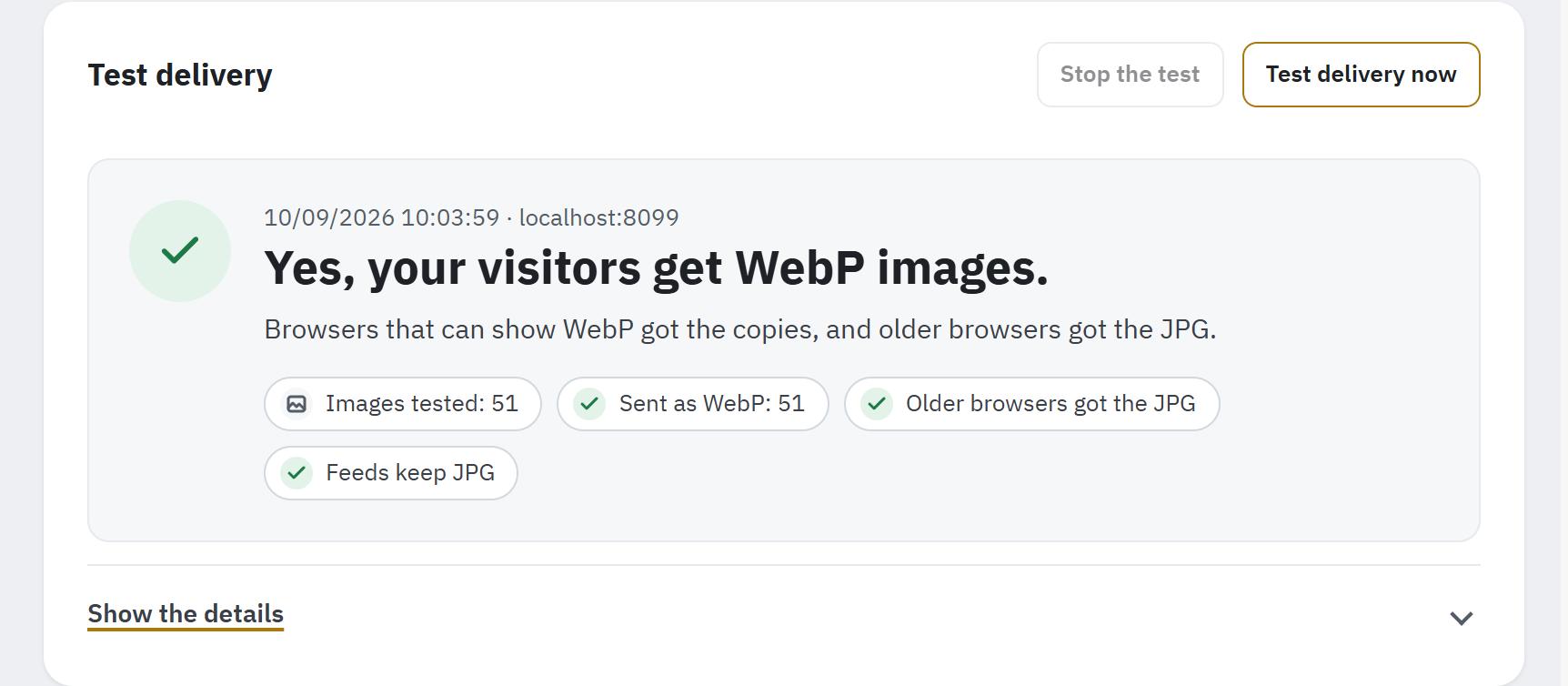
- Test delivery now and Stop the test.
- When the test ran, and the addresses it tested.
- The answer, and what the test saw in one or two sentences.
- The facts: images tested, sent as WebP (and AVIF), older browsers, feeds.
- Show the details: each address, the pages and the feeds.
The facts are short pills, such as Sent as WebP: 51 or Images to fix: 6. After a test made inside your server, What to do says what is left: nothing without a CDN, Open CDN with one. When there is a fix, one button leads to it: Open CDN, Write the rules (Write the rules again) or Open Convert images.
What the answer can say
The answer has a short form, which the page header, the Overview and the Last test column of the addresses show (Addresses of your shop).
| Short form | Answer on the card | What it means, what to do |
|---|---|---|
| Visitors get WebP | Yes, your visitors get WebP images. (… AVIF and WebP images. with AVIF) | Nothing to do. |
| Works on your server | Yes, your server sends WebP images. | The test ran inside your server, so a CDN in front of your shop was not checked (The test says Works on your server). |
| Works, with one thing to check | Yes, your visitors get WebP images. | The copies are sent without the Vary: Accept header (Copies are sent without the Vary: Accept header). |
| Some images still JPG | Yes, but some images are still sent as JPG. | The sentences give the main reason and its fix; the details list them all. |
| Visitors get JPG | No, your visitors still get JPG images. | The image rules are missing or do not work: the button writes them (Server rules). |
| Broken images | Problem: some visitors may see broken images. | Some browsers may get a format they cannot show, or no image. Follow the sentence and its button. |
| CDN not checked | Your server sends WebP, but the answers did not come through your CDN. | Test again in a few minutes. |
| Not tested | Not tested yet: the images of the tested pages have no copy. | Convert your images, then test again. |
| Not tested: your shop did not answer for some images. | Check that your shop answers, then test again. | |
| Not tested: your shop is in maintenance mode. | Add your server’s IP address to the maintenance IPs (Shop Parameters › General › Maintenance), or test when the shop is open. | |
| Not tested: no page of your shop could be opened. | Check the shop’s address, or enter a Connect to address (Advanced). | |
| Not tested: your pages took too long to answer. | Open a few pages of the shop so that its caches are built, then test again. | |
| Not decided: the test could not tell what your visitors get. | See the details, then test again. | |
| Not tested yet | Delivery has not been tested yet. | Click Test delivery now. |
Show the details
Show the details opens what the test found, address by address: its short form and counts, then the images that still got the JPG or PNG, grouped by reason, each with its number of images, what to do and up to three example addresses:
| Reason | What to do |
|---|---|
| This image has no copy yet. | Convert your images, then test again (Convert images). |
| The copy was larger than the original, so the original is sent. | Nothing to do: the original is the smaller file. |
| The server sent the JPG although a copy exists. | Check that the image rules are in the .htaccess file, or install the nginx configuration. A folder with its own .htaccess (RewriteEngine On) skips them; rewrite rules in img/.htaccess, such as hotlink protection, must move into the shop’s .htaccess. |
| The page has no sources for an image that has a copy. | Clear your page cache, then test again. |
| Your CDN sent the JPG it had stored. | Purge your CDN’s cache, then test again. |
| Your CDN keeps one version of each image for every browser. | The address uses sources in the page until a test passes. On Cloudflare, see CDN. |
| Browsers without WebP or AVIF got a copy. | The address uses sources in the page until a test passes. Some servers, such as OpenLiteSpeed, answer from a cache that ignores the browser: keep Sources in the page there. |
| The server refuses the copies. | A folder’s .htaccess file refuses WebP or AVIF files: write the rules again so the module can add its download grant, or add webp and avif to that folder’s list (An image folder lets browsers download listed file types only). |
| A copy the page links cannot be found at its address. | Browsers then show no image. Check that the folder of the copies can be reached from the web, then test again. |
| The server sent the JPG from its own cache. | LiteSpeed answers a repeated request from its cache without the rules: browsers still get the copy most of the time. |
| A CSS background image keeps its JPG. | Sources in the page cannot change CSS backgrounds: only the server swap can. |
| The image address is redirected. | Link your images at their final address, such as their https address. |
| The image could not be requested. | Check that your shop answers, then test again. |
Left as they are on purpose: images of another site, images a theme loads with its own lazy loader, and, on Classic 1.7.8, the images of the product gallery that the theme’s script changes. Broken image addresses are images that a module or your theme prints without your shop’s domain (The test lists broken image addresses). Then come the pages the test opened, each with its state (Opened, The shop has no such page, Too slow to answer…), notes about the whole test, such as The redirection to https comes after the image rules. (link your images with https), and the feeds.
Feeds and shared links
The same test checks that product feeds and shared links keep JPG images: the product page’s og:image and structured data must name a JPG or PNG address that answers with a JPG or PNG, and the product images that the Google and Facebook modules send must answer with JPG. The answer shows Feeds keep JPG, the details Feeds and shared links still get JPG images., and the Overview has the same check.
Addresses of your shop
The card Addresses of your shop lists every address of your shops and the media servers set in PrestaShop’s performance settings, marked Media server. For each one:
- Address: the domain, with its port if it has one.
- How images are sent: Same address (server swap), Sources in the page, or Not changed (the images keep their JPG or PNG until a delivery test has checked the copies), and why: Chosen by you., or the reason of Automatic (see the table below).
- Last test: the short form of the last test of this address and its date, such as Visitors get WebP · 10/07/2026, or Not tested yet.
- Mode: your choice, with Apply.
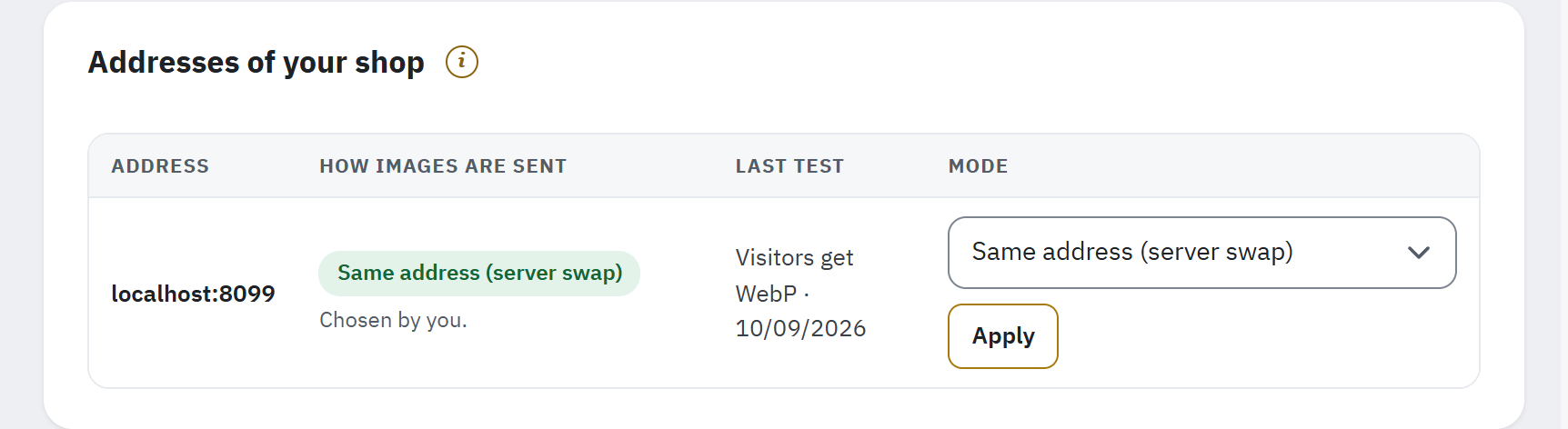
- The shop address; media servers, when the shop has any, are listed below it.
- How images are sent now, and the reason.
- The short form and the date of the last test of the address.
- The mode and Apply.
The three modes:
- Automatic (default): the copies are sent at the same address wherever the module can write its rules to the
.htaccessfile, and as sources in the page elsewhere. A media server, often a CDN, gets the copies as sources in the page once a delivery test has checked them there; it gets the server swap only after a passed Try server swap, or when you choose Same address (server swap). - Same address (server swap) always writes the rules for the address. Choose it only when the address is served by your shop’s server, or by a CDN that keeps one cached copy per image format (one that respects the
Vary: Acceptheader): a CDN that ignores it sends WebP or AVIF to browsers that cannot show them. - Sources in the page adds the copies to the HTML of your pages instead.
When an address is Automatic, the line under How images are sent says why it uses one way or the other:
| Reason shown | Sent as |
|---|---|
| Automatic: the .htaccess file holds the rules. | Server swap |
| Automatic: you confirmed the nginx configuration. | Server swap |
| Automatic: the server rules are not in place yet. | Sources in the page |
| Automatic: the .htaccess file cannot take the rules. | Sources in the page |
| Automatic: you switched the image rules off. | Sources in the page |
| Automatic: the nginx configuration is not confirmed yet. / Automatic: the nginx configuration changed. | Sources in the page |
| Automatic: a delivery test found that the server swap does not work here. | Sources in the page |
| Automatic: a CDN was seen in front of this address, and no delivery test has passed through it since. | Sources in the page |
| Automatic: media server, not tested yet. | Not changed, until a delivery test |
To change a mode, choose it and click Apply; for a media server, confirm the question that follows. When an address changes between the server swap and sources in the page, pages and images kept by a page cache or a CDN may still show the old way: a notice above the table names the addresses until you purge your CDN’s cache and click Done. With a Cloudflare token, the module purges Cloudflare itself (CDN). When a test switches an address to sources in the page, a dated line above the table says so.
Try server swap
An address that uses Sources in the page, for example because a CDN sits in front of it, can try the server swap safely:
- Click Try server swap on its line and confirm. If a CDN serves your images, confirm too that you will purge its cache after the test: the CDN keeps the version it gets during the test.
- The module switches the address to the server swap, writes the rules and runs the delivery test on that address at once.
- The address keeps the server swap only when the test passes. When it does not pass, or does not end within 10 minutes, the address goes back to sources in the page, and a line above the table says why.
The button appears only where the module can write the server rules into the .htaccess file. On nginx, choose Same address (server swap) for the address, paste the new nginx configuration and confirm it (nginx configuration), then test the delivery.
Server rules
On Apache and LiteSpeed, the module writes its rules in one marked block at the top of the shop’s .htaccess file, before PrestaShop’s own rules. It backs up the file in the module’s data folder first; the last 5 versions of the file are kept as backups. The rules are written again by themselves when the module is enabled or disabled, when a format is switched on or off, when a delivery mode changes and when PrestaShop rewrites its .htaccess file (for example after a save in Shop Parameters › Traffic & SEO).
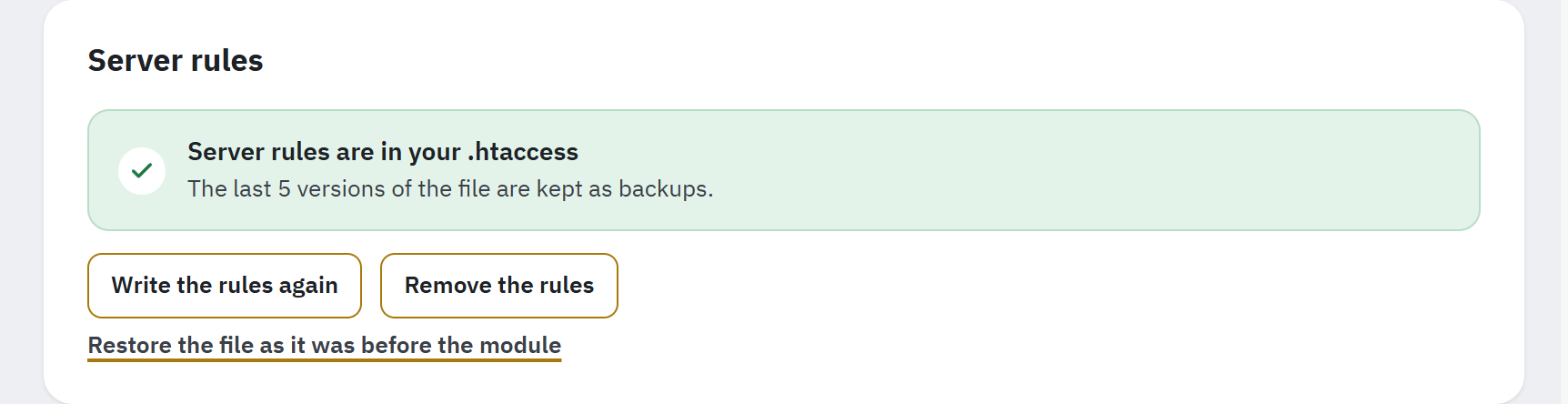
- The state of the rules.
- Write the rules again and Remove the rules.
- Restore the file as it was before the module.
| Shown | Meaning and what to do |
|---|---|
| Server rules are in your .htaccess | All is well. |
| The server rules are missing from your .htaccess | Click Write the rules. |
| The server rules cannot be written | The file is not writable for the web server. Make it writable (or ask your host) and click Write the rules, or add the rules by hand (below). |
| The module leaves your .htaccess file alone | The file is a link, or larger than 2 MB. Add the rules by hand (below). |
| You removed the image rules | The module does not add them back until you click Write the rules. |
| Your shop has no .htaccess file | The server may be nginx: use the configuration below. |
- Remove the rules takes the module’s block out of the file. Browsers then get the JPG and PNG images, and nothing writes the rules again until you write them here.
- Restore the file as it was before the module puts the
.htaccessfile back as it was before the module first changed it. Lines you added outside PrestaShop’s rules since then are lost; the current file is kept as a backup, and PrestaShop’s own rules stay as they are now. The image rules stay removed until you write them again.
Folders that allow listed file types only
Some image folders of PrestaShop let only listed file types be downloaded, such as img/ on PrestaShop 1.7.8 and 8.0, and themes/ on 8.1 and 8.2 for AVIF. The rules let browsers download the copies there, and only the files named like copies; the card shows the line of the rules that names them.
Adding the rules by hand
When the module cannot write the file, click Show the rules to add by hand, then Copy the rules, and add these lines at the top of the .htaccess file of your shop, before PrestaShop’s own rules (with your FTP program, or ask your host). Then click Test delivery now.
nginx configuration
nginx reads no .htaccess file. Open the card nginx configuration (Using nginx?): it shows the lines to add to the configuration of your server. The card is open by itself on a shop without a .htaccess file, and once you have confirmed a configuration.
- Click Copy the configuration.
- Add the first part once to the
http { }block, and the second part to theserver { }block of every shop address, before PrestaShop’s own rules. If you manage the server through a panel, give the lines to your host. - nginx answers these images from the module’s locations alone: copy the
expiresandCache-Controllines of your own image location into each of them. A location with its ownadd_headerline gets none of theadd_headerlines of the server block: copy the ones your images need, such as security headers, into the location too. - Reload nginx.
- Back in Delivery, click I added this configuration, then Test delivery now.
The configuration looks like this for a shop at the root of www.example.com with AVIF on. Always copy your own from the card: it lists your addresses and shop folders.
# 1) In the http { } block, once:
map $host $webpgen_host { default 0; "www.example.com" 1; }
map "$webpgen_host:$http_accept" $webpgen_avif { default ".webpgen-none"; "~*^1:.*image/avif" ".avif"; }
map "$webpgen_host:$http_accept" $webpgen_webp { default ".webpgen-none"; "~*^1:.*image/webp" ".webp"; }
map $uri $webpgen_base { default $uri; "~*^(?<webpgen_name>.+)\.(?:jpe?g|png)$" $webpgen_name; }

# 2) In the server { } block of every shop address:
location ~* ^/img/(?:p|c|m|su|st)/(?:.+/)?(?:\d+(?:-|_thumb-)[^/]*|[a-z][a-z]-default-[^/]*)\.(?:jpe?g|png)$ {
    types { image/avif avif; image/webp webp; image/jpeg jpg jpeg; image/png png; }
    add_header Vary Accept;
    try_files $webpgen_base$webpgen_avif $webpgen_base$webpgen_webp $uri =404;
}

location ~* ^/(?:img/cms/.+|img/[^/]+|themes/.+|modules/.+)\.(?:jpe?g|png)$ {
    types { image/avif avif; image/webp webp; image/jpeg jpg jpeg; image/png png; }
    add_header Vary Accept;
    try_files $uri$webpgen_avif $uri$webpgen_webp $uri =404;
}
The first part lists the addresses whose images nginx swaps. When their modes change, or when you switch AVIF on or off, the configuration changes: the card then says The nginx configuration changed. and asks you to paste it again and confirm. Until you do, the automatic addresses use sources in the page. If you take the configuration out of your server, click I removed it.
On Apache you need these lines only when nginx sits in front of it and serves your images.
Sources in the page
The card Sources in the page sums up how this way works and its limits (Two ways to send the copies). It stands below the addresses while an address uses it, and is a closed card near the end of the section otherwise. Besides:
- A copy is linked only when it exists and is newer than its image, and a format only when every size of the image has a copy in it.
- An image placed in a
<picture>element no longer matches a theme rule written for a direct child, such asa > img: check your pages after switching, and switch back if a picture looks different. - Product galleries keep working: on Classic 2.x and 3.x a click on a thumbnail shows its copy in the large image; on Classic 1.7.8 the large image and the thumbnails keep their JPG, as its script expects.
Advanced
The closed card Advanced is for shops that cannot reach their own address, and for media servers. Change a setting, then click Save.
| Setting | What it does | Default |
|---|---|---|
| Connect to | The address the delivery test connects to when your server cannot reach the shop’s own public address, such as 127.0.0.1:8080 on some hosts and in Docker; the requests keep your shop’s domain. A test made this way cannot see a CDN in front of your shop, so its answer is Works on your server. When the last test found such an address by itself, the field names it. | Empty (the public address) |
| Include media servers | The delivery test also asks for the images of the media servers set in PrestaShop’s performance settings, so their copies can be checked there and sent as sources in the page. | On |
Speed
Small changes in your pages that help Google’s speed scores: images further down the page wait until the visitor scrolls to them, and the main image of each page loads first. They work with both ways of sending the copies, and you can switch each one on or off per shop.
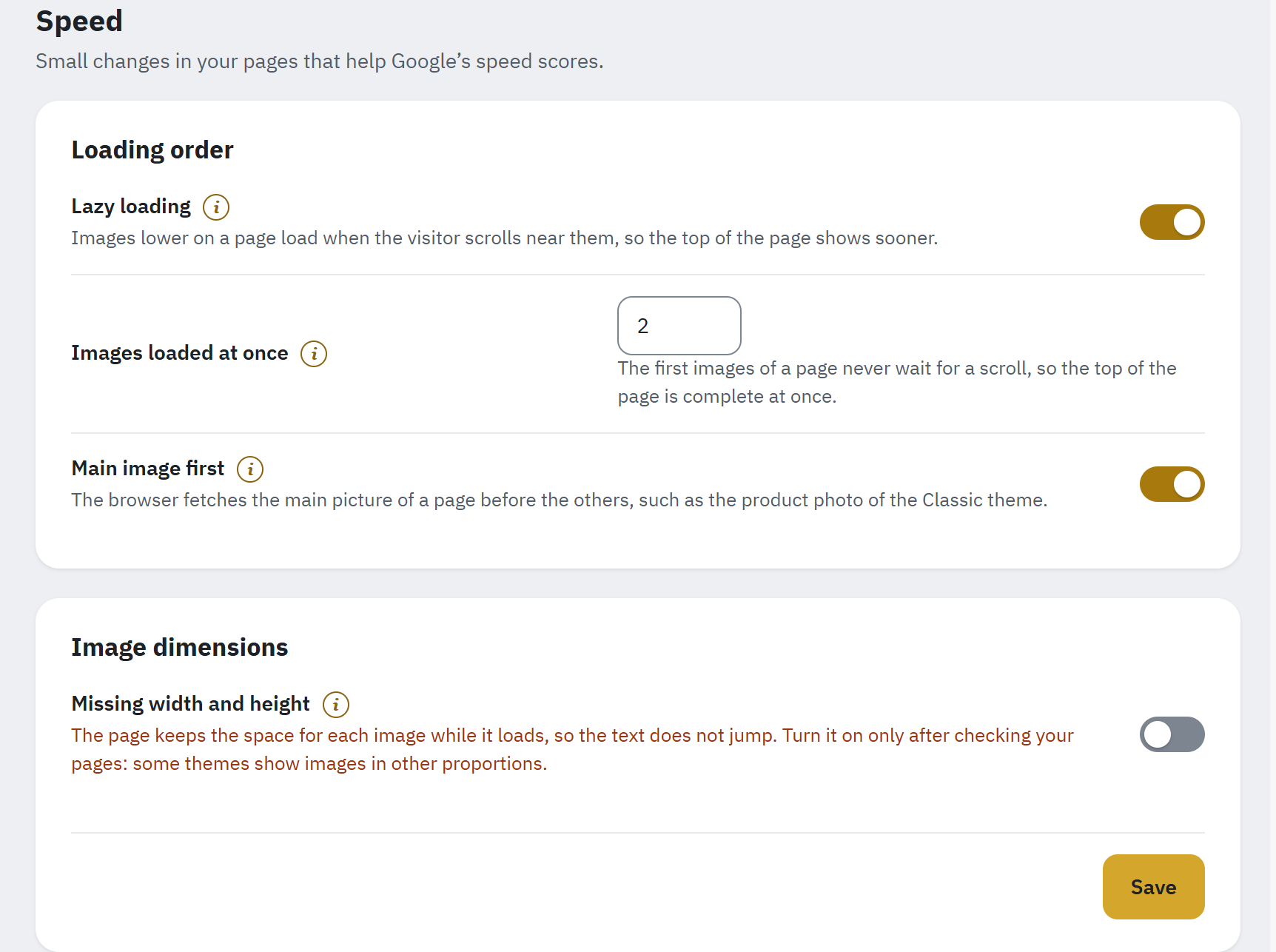
- Under each setting, what it changes in your pages; the (i) button gives the details.
- Loading order: lazy loading, the images loaded at once and the main image.
- Image dimensions: off by default, with a warning under the switch.
The settings
The settings are in two cards, Loading order and Image dimensions. A line under each one says what it changes, for example Images lower on a page load when the visitor scrolls near them, so the top of the page shows sooner.
| Setting | What it does | Default |
|---|---|---|
| Lazy loading | Images lower on a page load only when the visitor scrolls near them, so the top of the page shows sooner and uses less data. Images your theme already loads its own way are left alone. | On |
| Images loaded at once | How many images at the top of each page load right away, without waiting for a scroll; 0 lets lazy loading start with the first image. The logo counts. | 2 |
| Main image first | The browser fetches the main picture of each page first, such as the product photo or the first slide of the home page, which improves the Largest Contentful Paint of Google’s speed test. | On |
| Missing width and height | Images whose page gives no width and height get those of their image size (Design › Image Settings), so the page keeps their space while they load and the text does not jump. | Off |
Click Save. Pages show the change the next time they are loaded; clear your page cache if you use one.
What the module changes, and what it leaves alone
- Lazy loading adds
loading="lazy"to images that have no loading setting yet, except the main image and the first images of the page. An image that already has one keeps it. - The main image is the image your theme marks as the most important one; otherwise the first large catalogue image (the product photo on a product page, the category image), or the first slide of the image slider on the home page. It gets a high priority, loads without waiting, and the page tells the browser about it early, in the format the browser will use.
- The changes touch the images of your shop only: images of other sites, images a theme loads with its own lazy loader and images inside scripts are left alone.
- The changes take a few milliseconds per page and no database query. A page the module cannot read is sent exactly as it is.
Per shop
In a multistore back office, a line above the settings says which shops they apply to: one shop (These settings apply to My shop.), the shops of a group, or, in All shops, every shop that has no value of its own (All shops: shops with their own value keep it.). A setting that differs between shops is marked Some shops use another value. under it, in orange. Choose the shop or group in PrestaShop’s shop selector at the top of the back office before changing them.
CDN
A CDN keeps copies of your pages and images close to your visitors. When the module changes an image, or how an address sends its images, the CDN must forget the old version. This section says whether a CDN sits in front of your addresses and connects the module to Cloudflare.
Why a CDN needs care
With the server swap, one image address answers with AVIF, WebP or JPG depending on the browser. A CDN that keeps one version of each address for every browser would send the first version it got to everyone, so a browser that cannot show WebP might get WebP. The module therefore:
- notices a CDN in front of each shop address at installation and with a daily look at the home page of each address, and with every delivery test;
- sends the copies as Sources in the page for an address behind a CDN until a delivery test with the server swap passes through the CDN (Try server swap);
- reminds you to clear the CDN’s cache after changes, or purges Cloudflare itself with a token.
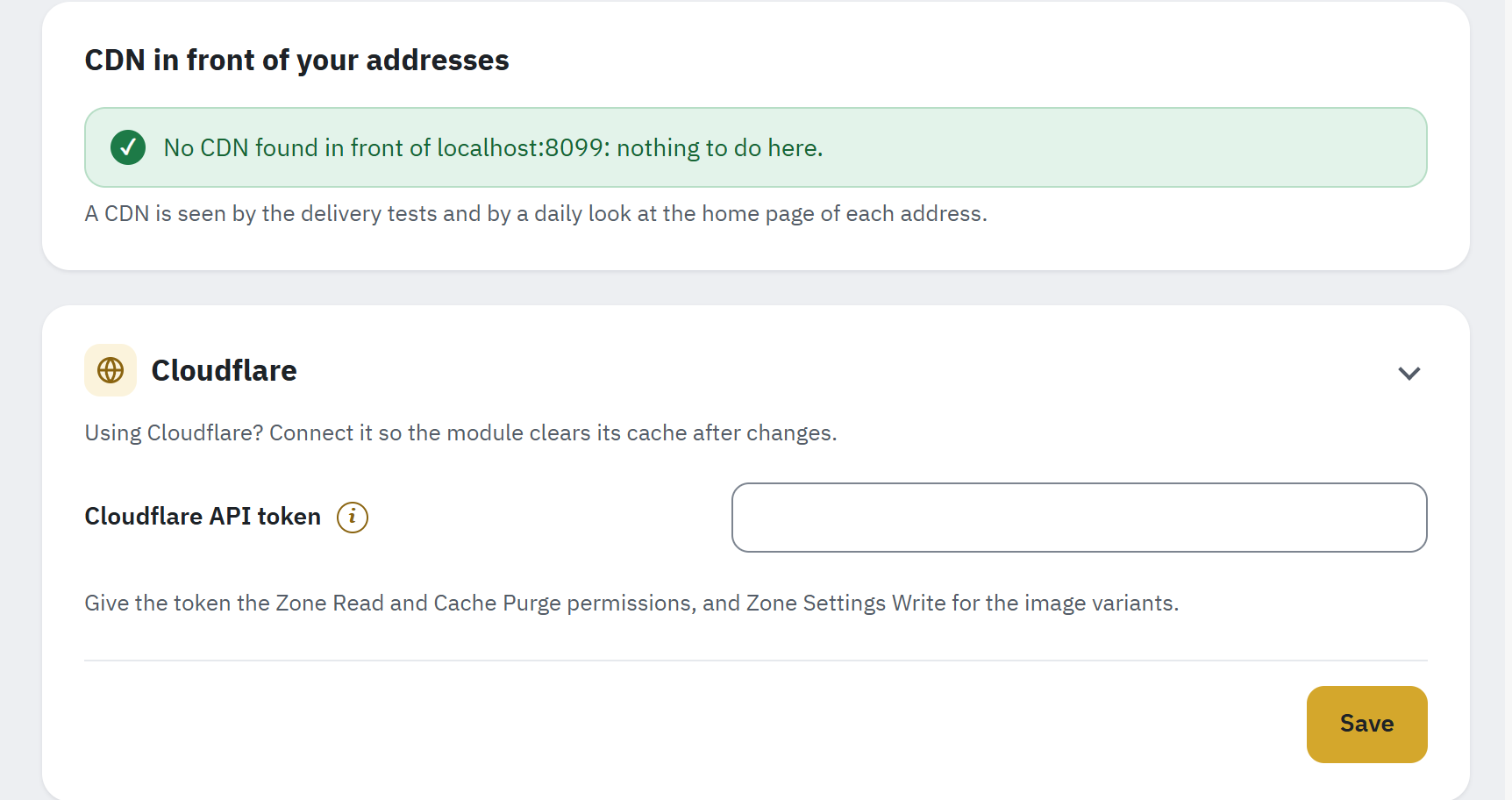
- No CDN in front of any address: one line with a tick that names them.
- The Cloudflare card, closed until you open it while no token is saved.
- Cloudflare API token and the permissions the token needs.
CDN in front of your addresses
When no CDN was seen in front of any address, the card CDN in front of your addresses says so in one line with a tick, such as No CDN found in front of www.example.com: nothing to do here.
Otherwise a table lists each Address and media server, the CDN seen in front of it and when (No CDN seen for the others), and How images are sent behind the CDN: Same address (server swap). or Sources in the page, until a delivery test with the server swap passes through your CDN. A Details column appears when a row has something to add, such as the Cloudflare zone and plan. Cloudflare, Amazon CloudFront, Fastly, bunny.net, Akamai, Sucuri and Varnish are named; any other CDN the module notices by its headers shows as an unrecognised CDN.
Clear your CDN cache
When an address changed how it sends its images and the module cannot purge its CDN itself (another CDN, or Cloudflare without a token), a card Clear your CDN cache names those addresses: pages and images your CDN or page cache kept from before may show an image format some browsers cannot show, or no image. Clear the cache in your CDN’s own panel (for Cloudflare: Caching › Configuration › Purge Cache), then click I cleared the cache.
Cloudflare
With an API token of your Cloudflare account, the module purges the images it changed, after conversions, after Clean up and after changes of how an address sends its images, a few addresses at a time. On Pro plans and higher it can also turn on the image variants.
While no token is saved and no address is behind Cloudflare, the Cloudflare card is closed (Using Cloudflare? Connect it so the module clears its cache after changes.): click it to open it.
- In Cloudflare, open your profile, then API Tokens, and create a token with the permissions Zone Read and Cache Purge, and Zone Settings Write if you want the module to turn on the image variants.
- In the Cloudflare card, paste it into Cloudflare API token and click Save. The token is stored on your server and never shown again.
- The module then looks for the Cloudflare zone of each address by itself (Check the token does it again later). The Details column of the address table shows the zone and plan, for example Zone example.com, plan Free.
Once a token is saved, the card stays open with these settings and buttons:
| Setting or button | What it does |
|---|---|
| Purge changed images automatically (on by default) | After each conversion, clean-up or change of how an address sends its images, Cloudflare is asked to forget the old versions, a few addresses at a time. When it is off, the card says Automatic purges are off: after a change, purge in Cloudflare yourself. |
| Purge this shop’s addresses now | Asks Cloudflare to forget everything it keeps for the addresses of this shop. Your visitors then get each page and image from your server once, which is slower for a moment. |
| Remove the token | The module then purges nothing and forgets the zones it found. |
The card shows the last purge, the addresses waiting for a purge (Nothing waits for a purge. when all is done) and the last error, if any. The token applies to all shops.
Cloudflare and image formats
Cloudflare keeps one version per address. Until a delivery test with the server swap passes through Cloudflare, the module sends the copies for the addresses behind Cloudflare as sources in the page, which Cloudflare keeps as they are. The card Cloudflare and image formats appears when an address is behind Cloudflare and says what your plan allows. To use the server swap behind Cloudflare:
- Every plan, Free included: add a Cache Rule for your images in Caching › Cache Rules: choose Eligible for cache, then add the Vary setting for the
Acceptheader. - Pro plans and higher: click Turn on WebP and AVIF variants (Turn on WebP variants while AVIF is off), then Turn them on. Cloudflare then keeps a JPG, a WebP and an AVIF version of each image address. The token needs the Zone Settings Write permission for this.
Then use Try server swap in the Delivery section (Try server swap). The module never changes your Cloudflare rules itself.
Other CDNs
The module cannot purge the cache of another CDN; the Details column says so. After a delivery mode change, purge its cache in its own panel. A CDN that respects the Vary: Accept header works with the server swap once a delivery test passes through it; any other keeps Sources in the page.