


















Help and support
The Help section holds the guides, short answers to frequent questions, support and version: where to find this user guide, the way to reach us, and the version of the module installed in your shop.
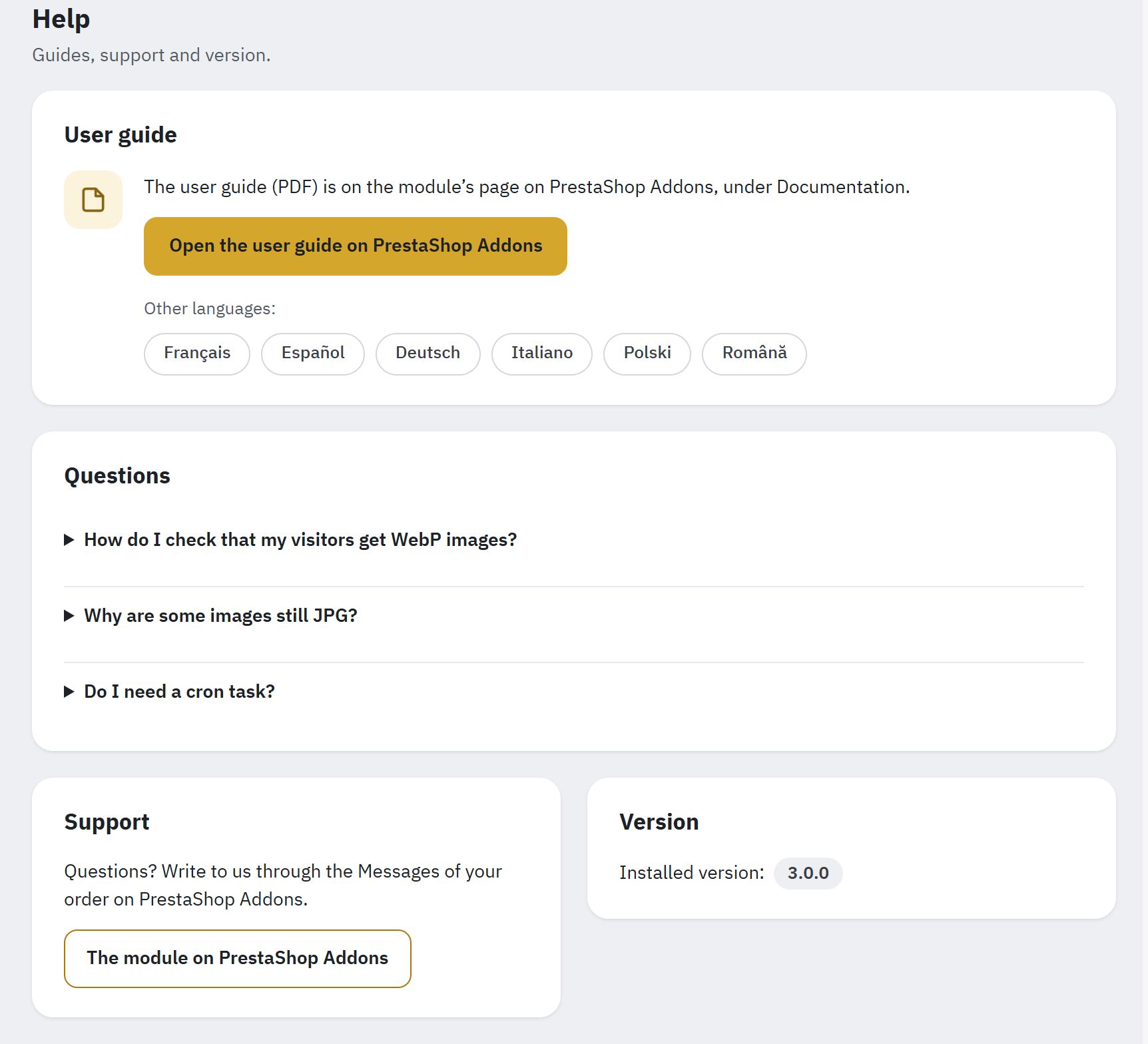
- User guide: Open the user guide on PrestaShop Addons, and the module’s page in the other languages of the guide.
- Questions: three short answers, each opened by a click.
- Support: how to reach us.
- Version: the version installed.
- User guide: The user guide (PDF) is on the module’s page on PrestaShop Addons, under Documentation. It comes in English, French, Spanish, German, Italian, Polish and Romanian. Open the user guide on PrestaShop Addons opens that page in a new tab, in the language of your back office (in English when there is no guide in it). Under Other languages:, the buttons, each named in its own language (Français, Español…), open the page in the other languages.
- Questions: three short answers, closed until you click their question:
- How do I check that my visitors get WebP images? Run the test of Delivery, or look at the type of the images in the Network tab of your browser’s developer tools.
- Why are some images still JPG? Their copy waits, was not smaller than the original, or their kind is not chosen in Images to convert.
- Do I need a cron task? Not for most shops; it helps a large shop, or one whose back office is rarely open (Automatic conversion).
- Support: Questions? Write to us through the Messages of your order on PrestaShop Addons. The module on PrestaShop Addons opens its page there.
- Version: Installed version: and its number. Updates come through PrestaShop Addons and the Module Manager.
Before you write to us
Most questions are answered faster with these details:
- The version of the module (Help › Version) and of PrestaShop.
- The Overview: the things that need your attention, or the checks under Show all checks that are not green, with their text.
- The answer of the last delivery test (Delivery › Test delivery) if images are not sent as WebP or AVIF.
- The module’s entries in Advanced Parameters › Logs: their messages start with
WebP Generator:. - The address of a page where you see the problem.
The module’s log entries never contain its keys or tokens, so you can copy them to us as they are. Do not send us the cron address (it contains a secret token) or your back-office password.
Troubleshooting and FAQ
Start with the header of the module’s page: its badge says Working, or, for example, Needs attention: 2, which leads to the Overview. There, a banner lists the things that need your attention, each with the link that leads to the fix (Show all checks shows every check). The delivery test then says what your visitors get, image by image. Errors are written to Advanced Parameters › Logs, where the module’s messages start with WebP Generator: (WebP and AVIF Everywhere’s earlier name).
How do I see that it works?
- In Delivery, click Test delivery now. The answer says it in one sentence, such as Yes, your visitors get WebP images., with the number of images sent as WebP and as AVIF (The answer). The header then shows Visitors get WebP too.
- In your own browser, open a product page, press F12 and open the Network tab, filter on images and reload the page. With the server swap, an image whose address ends in
.jpgshows the typeaviforwebp; with sources in the page, the browser loads the.webpor.avifaddress itself. - In Compare, look at an image as the original and as its copies, with their file sizes (Compare).
Your browser may show images from its own cache: reload with Ctrl+F5 (Cmd+Shift+R on a Mac) after a change.
Problems and their fixes
Visitors still get the JPG images
The delivery test then answers Yes, but some images are still sent as JPG. or No, your visitors still get JPG images., with the main reason; Show the details lists them all (Show the details).
- The images have no copies yet. Convert images says so at the top, such as Images waiting for a copy: 23.: click Convert now (Convert images). For images added by FTP or an import, click Scan again there first.
- The server rules are missing. Delivery › Server rules says so; click Write the rules, add them by hand, or paste the nginx configuration (Server rules).
- A CDN or page cache sends what it kept from before. Clear the cache of your page-cache module and your CDN, then test again.
- The copy was not smaller. The original is then sent on purpose (Original kept).
- The image is loaded by JavaScript or is a CSS background on an address that uses sources in the page: only the server swap covers those.
The test says Works on your server
The answer Yes, your server sends WebP images. means that the test ran inside your server (through Connect to, or a local address found because the server could not reach the shop’s public address), so a CDN or proxy in front of the shop was not checked. Without a CDN, nothing is left to do. With one, empty Connect to if your server can reach the public address, then test again (CDN).
The server rules cannot be written
Delivery › Server rules says why: The .htaccess file is not writable for the web server., The .htaccess file is a link, which the module leaves alone., The .htaccess file is larger than 2 MB, which the module leaves alone. or The shop folder has no .htaccess file: the web server may be nginx. Make the file writable (or ask your host) and click Write the rules, or click Show the rules to add by hand and add them at the top of the file (Adding the rules by hand). Meanwhile the shop addresses use Sources in the page.
When the module cannot back up the file first, it does not change it: make the folder var/modules of the shop writable for the web server.
My server runs nginx
Paste the configuration of Delivery › nginx configuration into your server, reload nginx, then click I added this configuration and Test delivery now (nginx configuration). When the module says The nginx configuration changed., paste the new one: the old one still swaps the addresses it listed. On a host where you cannot change the nginx configuration, keep Sources in the page: it needs nothing on the server.
Copies are sent without the Vary: Accept header
The delivery test then answers Works, with one thing to check, or, behind a CDN, Broken images. With the server swap, the header Vary: Accept tells caches and CDNs that one address has several versions. Without it, a CDN or proxy in front of the shop may keep one version of each image for every browser.
- On Apache: ask your host to turn on
mod_headers, then test again. - On OpenLiteSpeed, or a server that does not send the header the
.htaccessfile asks for: set the address to Sources in the page. - On nginx: paste the configuration again; it sends the header.
Behind a CDN, some browsers get WebP they cannot show
Your CDN keeps one version of each image for every browser: the delivery test answers Problem: some visitors may see broken images. with Your CDN keeps one version of each image for every browser., and switches the address to sources in the page. On Cloudflare, add the Cache Rule with the Vary setting, or turn on the image variants on Pro plans, then use Try server swap (Cloudflare and image formats). Purge the CDN’s cache after each change.
AVIF is not available on this server
AVIF needs GD with AVIF on PHP 8.1 or later, or Imagick with AVIF. Many hosts have neither yet: Formats and quality then shows Also create AVIF copies greyed out, with what to ask your host. Ask your host for GD with AVIF or Imagick with AVIF; meanwhile your images get WebP copies, which most of the saving already comes from. After your host adds it, click Test conversion in Engine, then switch on Also create AVIF copies in Formats and quality if it is off. Images over 16 megapixels get a WebP copy only.
The automatic conversion does not run
Automatic conversion then says Only images you upload are converted automatically., and its Cron task card is open.
- Open the cron address in your browser (Cron task).
"ok":true: the address works, so check the cron job of your hosting (its schedule, and that the command holds the whole address in quotes)."error":"forbidden": the token is wrong; copy the address again from the Cron task card."error":"upgrade": the module is finishing its upgrade; try again in a few minutes. - The answer
"reason":"locked"means that another conversion was running: the next call goes on. - The cron address works in maintenance mode too.
- Without a cron job, keep Convert while the back office is open on, and open the back office from time to time.
The shop gets slower while images are converted
Turn on Pause after each image in Automatic conversion › How conversion runs (Gentle mode). The conversion then takes longer, and nothing else changes.
Some images have no copy
- Original kept: the copy was not smaller than the original. Nothing to do.
- Failed: Convert images lists them with the reason in the card Images that could not be converted (Images that could not be converted).
- The folder of the image refuses the format, or keeps its images private: see the next answers.
An image folder lets browsers download listed file types only
Some .htaccess files of image folders allow a list of file types, such as img/.htaccess on PrestaShop 1.7.8 and 8.0. The module’s rules add a narrow download grant for its copies there, written in the syntax your server already uses. When the Overview says Your file … lets browsers download listed file types only, add webp and avif to that file’s list (or ask your host), then click Write the rules again in Delivery. Images in a folder that refuses a format are counted on the Overview and get no copy of it.
My hosting’s hotlink protection does not cover WebP and AVIF
Hotlink protection (in cPanel, for example) stops other sites from showing your images, for the file types it lists. When the Overview says Your hotlink protection does not cover WebP and AVIF, add webp and avif to its list; otherwise other sites can show your images as WebP or AVIF.
The delivery test cannot open the shop’s pages
The answer then says Not tested: no page of your shop could be opened. The test runs from your server. Some hosts and Docker set-ups cannot reach their own public address: enter a local address that reaches the shop in Delivery › Advanced › Connect to, such as 127.0.0.1:8080 (Advanced). In maintenance mode (Not tested: your shop is in maintenance mode.), add your server’s IP address to the maintenance IPs, or test when the shop is open.
The test lists broken image addresses
Broken image addresses are images that a module or your theme prints without your shop’s domain, such as //modules/blockreassurance/…: browsers cannot load them, with or without this module. Ask the developer of that module or theme for a fix.
After switching to sources in the page, a picture looks different
The image is now inside a <picture> element, and a rule of your theme written for a direct child (such as a > img) no longer matches it. Switch the address back in Delivery, or ask your theme’s developer to adjust the rule.
Some images are empty after a clean-up
An address that uses sources in the page links the copies in the HTML. Pages kept by a page cache or a CDN may still link copies that Clean up deleted (Leftover copies › Delete these copies). Clear your page cache and your CDN’s cache.
Images whose file name starts with an accented letter get no copy
On PHP 7 with a plain server locale, PHP misreads file names that start with a letter outside A–Z (such as été.jpg), and the module skips them rather than risk another file. Statistics counts them. PHP 8 is not affected: ask your host to move the shop to PHP 8, or rename those files.
Frequently asked questions
Does the module change my original images?
No. It only adds copies next to them, unless you turn on Optimise originals, which keeps a backup of every file it changes (Originals).
Do Google Shopping and Facebook still get JPG images?
Yes. Product feeds, the og:image of shared links, structured data and emails keep their JPG addresses, and the delivery test checks what they get: its answer shows Feeds keep JPG (Feeds and shared links).
Does it work with my page-cache module?
Yes. The HTML is the same for every browser in both ways of sending the copies, so cached pages stay valid. Clear the page cache after switching an address between the server swap and sources in the page, and after a clean-up.
PrestaShop 8.1 and 9 make WebP and AVIF themselves. Do I still need the module?
PrestaShop makes copies of catalogue images only, and only when you turn the formats on in Design › Image Settings. The module uses PrestaShop’s files where they exist and adds the rest: the copies PrestaShop forgets or misses, CMS, theme and module images, the logo, and the delivery at the same address for themes that show only the .jpg address (What PrestaShop creates itself). While PrestaShop makes a format, the module never replaces its files.
Can I use another WebP module at the same time?
Do not run another module that sends WebP images next to WebP and AVIF Everywhere: their rules or overrides compete. Uninstall the other one first, following its own instructions. WebP and AVIF files made by other software at the names the module would use are left alone: the module never overwrites or deletes them. The one exception is a shop upgraded from version 2, where the copies found at the upgrade are taken over as the module’s own.
Can visitors download WebP files from folders that are otherwise private?
The download grant of the rules applies to files named like the module’s copies, in every folder of the shop. Images that their folder keeps private get no copy. But a WebP or AVIF file of your own whose name looks like a copy (a name that starts with a number, such as 12-scan.webp, or ends in .jpg.webp) can then be downloaded even from a private folder: keep no private WebP or AVIF files in the shop folder.
How much disk space do the copies take?
Each copy is smaller than its original, but WebP and AVIF copies together can take about as much space as the originals. Statistics › Disk space shows the exact figure and the free space (Disk space).
Disable, reset and uninstall
Uninstalling removes the module’s rules, settings and tables, but keeps what could still matter to you: the WebP and AVIF copies, and the backups of optimised originals. Decide first what you want to keep.
Before you uninstall
- The copies stay after an uninstall. To delete them, open the card Before you uninstall at the end of Clean up, choose All copies under Copies to delete and click Delete the copies first (Before you uninstall: delete copies made by this module). After a reinstall, the module treats the copies it left as files of your shop and never deletes them.
- The backups of optimised originals stay in
var/modules/webpgenerator/originals/andoriginals-replaced/. To get the originals back, use Restore all in Originals; to delete the backups, use Delete backups there (Backups). - The copies of version 2 moved aside in Clean up are deleted with the module. Put back any you still need with Restore first.
- Every setting is deleted, with the EWWW key, the Cloudflare token, the PageSpeed key and the cron token: after a reinstall, enter the keys again and copy the new cron address into your cron job.
Uninstall
- Open Modules › Module Manager and find WebP and AVIF Everywhere.
- In the menu of its button, click Uninstall. PrestaShop shows the module’s question: uninstalling keeps the WebP and AVIF copies (to delete them, use Clean up first), the copies made by version 2 and moved aside in Clean up are deleted with the module, and the backups of optimised original images stay.
- Confirm.
The uninstall removes the module’s rules from the .htaccess file, its settings, its menu entry, its tables and its data folder, except the backups of optimised originals and their list. Browsers then get your JPG and PNG images again. On nginx, remove the module’s configuration from your server and reload nginx.
Disable and Reset
- Disable switches the module off in the shops selected: their addresses leave the server rules, so browsers get the JPG and PNG images there, and images uploaded there are no longer converted. On nginx, the configuration you pasted keeps swapping until you replace it. In a multistore, the shops where the module stays on keep converting the shared images. The copies and the settings stay; Enable brings everything back.
- Reset uninstalls and installs the module again: the settings go back to their defaults (the keys, the tokens and the cron address included, so update your cron job afterwards) and the backups of optimised originals are kept. The copies stay too, but the module then counts them as files of your shop, which it never overwrites or deletes. To start from a clean state, delete the copies in Clean up › Before you uninstall before a Reset.
Uninstalling, a Reset or a failed reinstall never deletes the backups of optimised originals: a reinstall can still put them back.